> ## Documentation Index
> Fetch the complete documentation index at: https://docs.docswrite.com/llms.txt
> Use this file to discover all available pages before exploring further.
# API
> How to connect and publish to WordPress using the Docswrite API.
# WordPress API Integration
Docswrite allows you to publish Google Docs directly to your WordPress site using the WordPress API. This guide explains how to connect your WordPress site and use the API for seamless publishing.
## What is an Application Password?
When connecting Docswrite to your WordPress site via the API, you'll use a WordPress feature called an **Application Password**. An Application Password is a secure, site-specific password you generate in your WordPress admin dashboard. It allows external applications (like Docswrite) to access your site without sharing your main WordPress login credentials.
**Advantages of Application Passwords:**
* **Security:** You never have to share your main WordPress password. If needed, you can revoke an application password at any time without affecting your main account.
* **Granular Control:** Each application gets its own password, so you can manage and monitor access for different tools separately.
* **Easy Revocation:** If you no longer want Docswrite (or any app) to access your site, simply delete the corresponding application password in your WordPress dashboard.
Using an Application Password is the recommended and most secure way to connect Docswrite to your WordPress site via the API.
## How to Generate an Application Password in WordPress
To connect Docswrite (or any external app) to your WordPress site via the API, you need to generate an **Application Password**. Here’s how:
1. **Log in to your WordPress Admin Dashboard.**
2. In the left sidebar, go to **Users > Profile** (or **Your Profile**).
3. Scroll down to the **Application Passwords** section.
4. In the **New Application Password Name** field, enter a name like `Docswrite` (this helps you remember what the password is for).
5. Click **Add New Application Password**.
6. WordPress will generate a new password. \*\*Copy this password and save it somewhere safe \*\*you won’t be able to see it again!
7. Use this password (along with your WordPress username) when connecting your site to Docswrite.
> **Note:** If you don’t see the Application Passwords section, make sure you are using WordPress 5.6 or later and that your account has the necessary permissions (usually Administrator).
**For more details, see the [official WordPress documentation](https://wordpress.com/support/security/two-step-authentication/application-specific-passwords/).**
***
## Automatic - Connecting Your WordPress Site
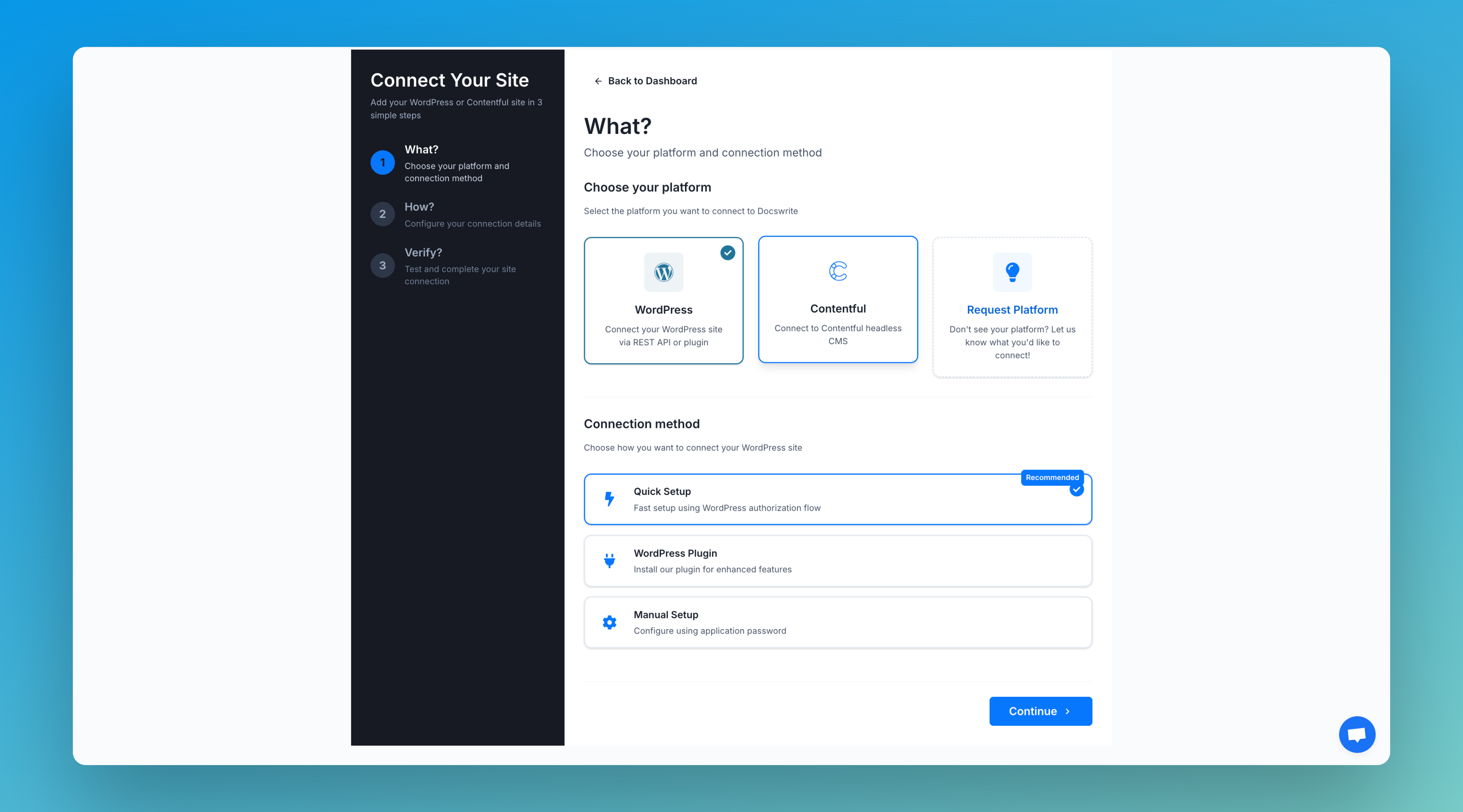 1. **Go to the [Docswrite Dashboard](https://docswrite.com/dashboard).**
2. Click **Connect Site** and select **WordPress**.
3. Choose **WordPress API** as your connection method.
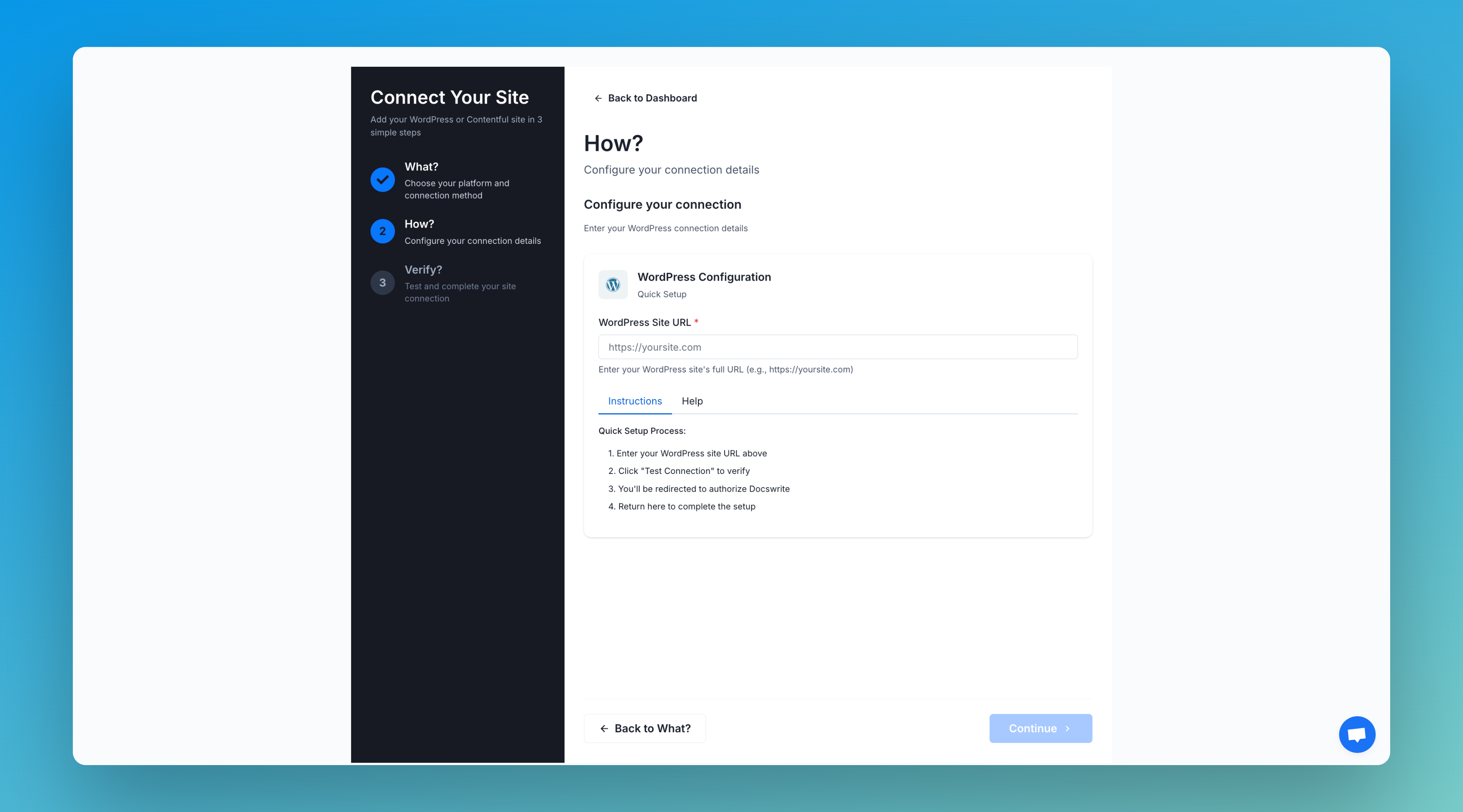
4. Enter your WordPress site URL without the wp-admin
5. You will be redirected to your site WordPress Admin
6. Authorize Docswrite to access your WordPress site.
7. You will be redirected back to Docswrite dashboard
##
1. **Go to the [Docswrite Dashboard](https://docswrite.com/dashboard).**
2. Click **Connect Site** and select **WordPress**.
3. Choose **WordPress API** as your connection method.
4. Enter your WordPress site URL without the wp-admin
5. You will be redirected to your site WordPress Admin
6. Authorize Docswrite to access your WordPress site.
7. You will be redirected back to Docswrite dashboard
##  ***
## Manual Connection
***
## Manual Connection
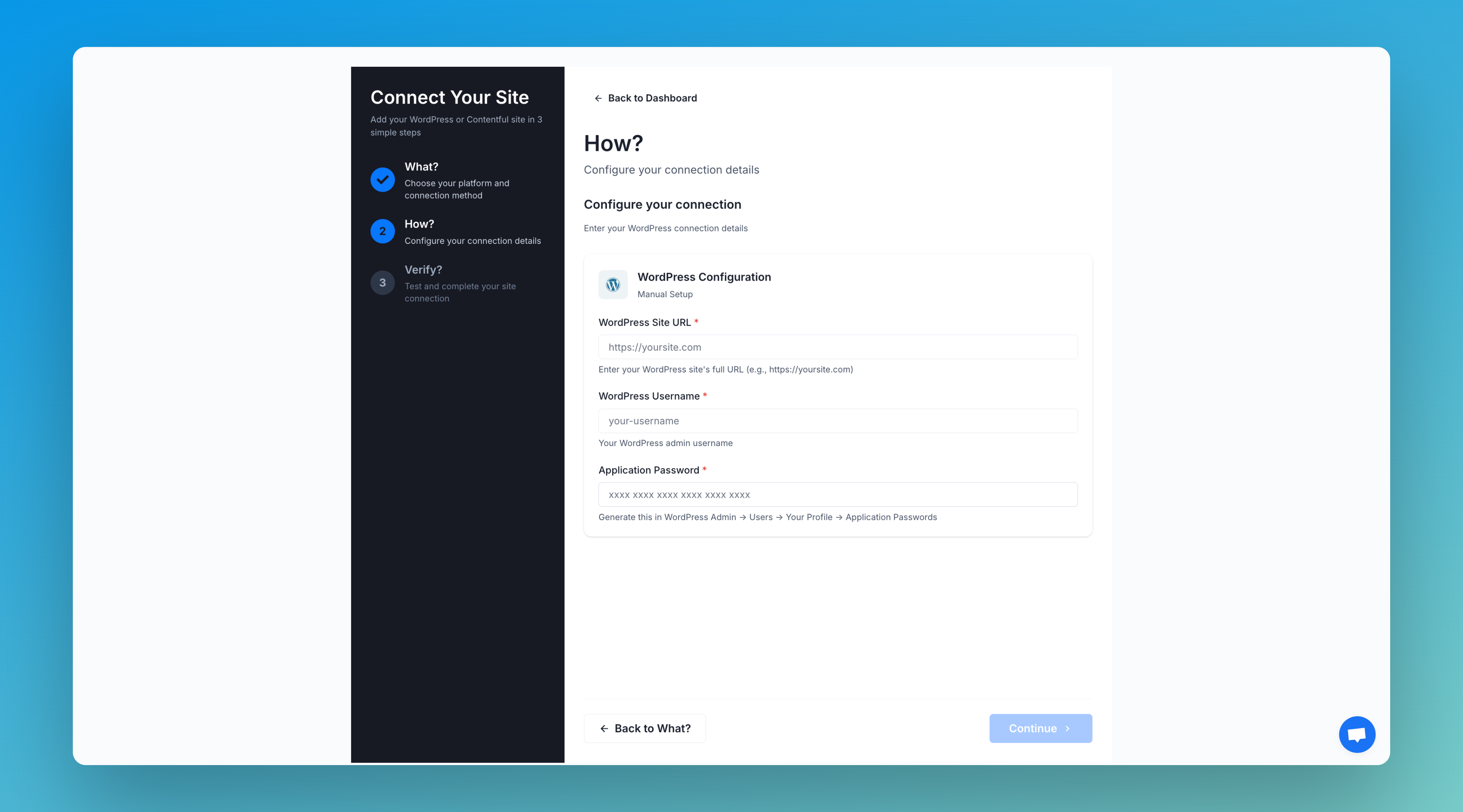 1. **Go to the [Docswrite Dashboard](https://docswrite.com/dashboard).**
2. Click **Connect Site** and select **WordPress**.
3. Choose **WordPress Manual Setup** as your connection method.
4. Enter your WordPress site URL without the wp-admin, your WordPress admin and
your WordPress application password
5. Click on Continue
1. **Go to the [Docswrite Dashboard](https://docswrite.com/dashboard).**
2. Click **Connect Site** and select **WordPress**.
3. Choose **WordPress Manual Setup** as your connection method.
4. Enter your WordPress site URL without the wp-admin, your WordPress admin and
your WordPress application password
5. Click on Continue