> ## Documentation Index
> Fetch the complete documentation index at: https://docs.docswrite.com/llms.txt
> Use this file to discover all available pages before exploring further.
# Newspack Support
> How to export and map Google Docs content to WordPress Newspack fields using Docswrite.
# Export Google Docs to WordPress Newspack Fields
Docswrite supports exporting your Google Docs content directly to WordPress [Newspack](https://newspack.blog/) fields, making it easy to publish and optimize your articles for digital newsrooms right from your document.
## How Newspack Integration Works
When exporting a Google Doc, Docswrite detects your Newspack fields and allows you to map content from your document to those fields. This enables you to:
* Set headline, excerpt, and byline directly from your Google Doc
* Populate Newspack-specific fields such as "Article Subtitle" or "Featured Image"
* Automate structured content population for every post
* Eliminate manual copy-paste into Newspack fields in WordPress
## Step 1: Set Up Newspack on Your WordPress Site
1. Install and activate the [Newspack plugin](https://wordpress.org/plugins/newspack-plugin/).
2. Configure your newsroom and article settings in the Newspack dashboard.
## Step 2: Connect Your WordPress Site to Docswrite
Follow the [WordPress integration guide](/integrations/wordpress/api) to connect your site via API or plugin.
## Step 3: Map Google Doc Content to Newspack Fields
1. In the Docswrite dashboard, select your Google Doc(s) to export.
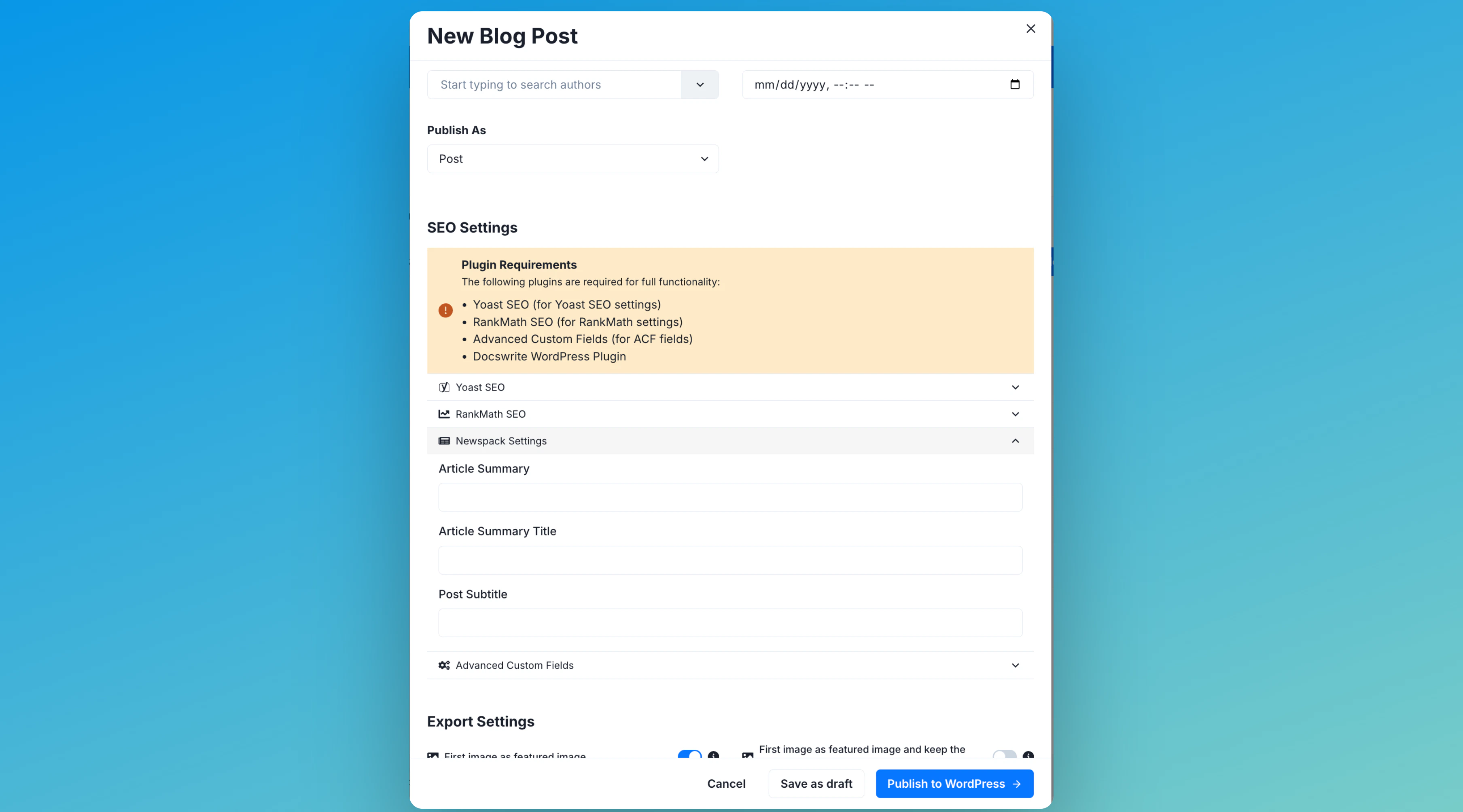
2. In the export settings, you'll see a section for **Newspack** fields.
3. Docswrite will automatically fetch the available Newspack fields for your post type.
4. Map each Newspack field to a section or property from your Google Doc, such as:
* **Headline**: Map to your document title or a custom heading.
* **Excerpt**: Map to a summary or custom paragraph.
* **Byline**: Map to an author field or text in your doc.
* **Article Subtitle**: Map to a subheading or custom field.
* **Featured Image**: Map to an image in your doc.
## Step 4: Publish!
Click **Publish to WordPress**. Docswrite will create a new post (or update an existing one) and populate all mapped Newspack fields automatically.
 ## Step 4: Publish!
Click **Publish to WordPress**. Docswrite will create a new post (or update an existing one) and populate all mapped Newspack fields automatically.
## Step 4: Publish!
Click **Publish to WordPress**. Docswrite will create a new post (or update an existing one) and populate all mapped Newspack fields automatically.