> ## Documentation Index
> Fetch the complete documentation index at: https://docs.docswrite.com/llms.txt
> Use this file to discover all available pages before exploring further.
# Yoast SEO Support
> How to export and map Google Docs content to WordPress Yoast SEO fields using Docswrite.
# Export Google Docs to WordPress Yoast SEO Fields
Docswrite supports exporting your Google Docs content directly to WordPress [Yoast SEO](https://yoast.com/seo-blog/) fields, making it easy to optimize your posts for search engines right from your document.
## How Yoast SEO Integration Works
When exporting a Google Doc, Docswrite detects your Yoast SEO fields and allows you to map content from your document to those fields. This enables you to:
* Set SEO title, meta description, and focus keyword directly from your Google Doc
* Automate SEO metadata population for every post
* Eliminate manual copy-paste into Yoast SEO fields in WordPress
## Step 1: Set Up Yoast SEO on Your WordPress Site
1. Install and activate the [Yoast SEO plugin](https://wordpress.org/plugins/wordpress-seo/).
2. Configure your basic SEO settings in the Yoast SEO dashboard.
## Step 2: Connect Your WordPress Site to Docswrite
Follow the [WordPress integration guide](/integrations/wordpress/api) to connect your site via API or plugin.
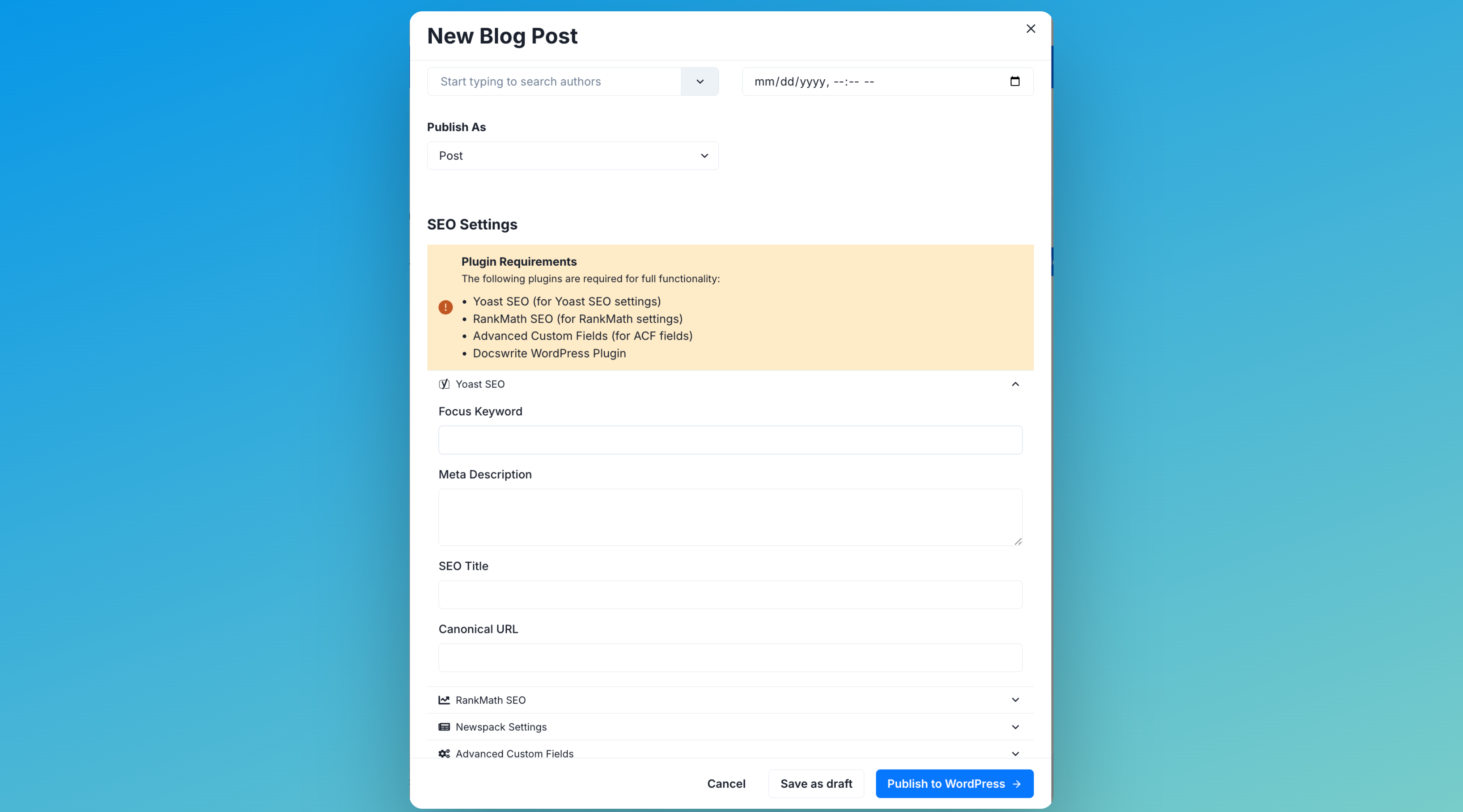
## Step 3: Map Google Doc Content to Yoast SEO Fields
1. In the Docswrite dashboard, select your Google Doc(s) to export.
2. In the export settings, you'll see a section for **Yoast SEO** fields.
3. Docswrite will automatically fetch the available Yoast SEO fields for your post type.
4. Map each Yoast SEO field to a section or property from your Google Doc, such as:
* **SEO Title**: Map to your document title or a custom heading.
* **Meta Description**: Map to a summary or custom paragraph.
* **Focus Keyword**: Map to a keyword or phrase in your doc.
## Step 4: Publish!
Click **Publish to WordPress**. Docswrite will create a new post (or update an existing one) and populate all mapped Yoast SEO fields automatically.
 1. In the Docswrite dashboard, select your Google Doc(s) to export.
2. In the export settings, you'll see a section for **Yoast SEO** fields.
3. Docswrite will automatically fetch the available Yoast SEO fields for your post type.
4. Map each Yoast SEO field to a section or property from your Google Doc, such as:
* **SEO Title**: Map to your document title or a custom heading.
* **Meta Description**: Map to a summary or custom paragraph.
* **Focus Keyword**: Map to a keyword or phrase in your doc.
## Step 4: Publish!
Click **Publish to WordPress**. Docswrite will create a new post (or update an existing one) and populate all mapped Yoast SEO fields automatically.
1. In the Docswrite dashboard, select your Google Doc(s) to export.
2. In the export settings, you'll see a section for **Yoast SEO** fields.
3. Docswrite will automatically fetch the available Yoast SEO fields for your post type.
4. Map each Yoast SEO field to a section or property from your Google Doc, such as:
* **SEO Title**: Map to your document title or a custom heading.
* **Meta Description**: Map to a summary or custom paragraph.
* **Focus Keyword**: Map to a keyword or phrase in your doc.
## Step 4: Publish!
Click **Publish to WordPress**. Docswrite will create a new post (or update an existing one) and populate all mapped Yoast SEO fields automatically.