> ## Documentation Index
> Fetch the complete documentation index at: https://docs.docswrite.com/llms.txt
> Use this file to discover all available pages before exploring further.
# AI Writer
> How to use Docswrite's AI Writer to generate and publish content directly to WordPress.
# AI Writer: Generate & Publish Content to WordPress
Docswrite's AI Writer lets you create high-quality blog posts and pages using AI, then publish them directly to your WordPress site—no copy-paste or formatting headaches.
## Step 1: Access the AI Hub
1. Go to the [Docswrite Dashboard](https://docswrite.com/dashboard).
2. Click on **AI Hub** in the sidebar.
## Step 2: Generate Your Content
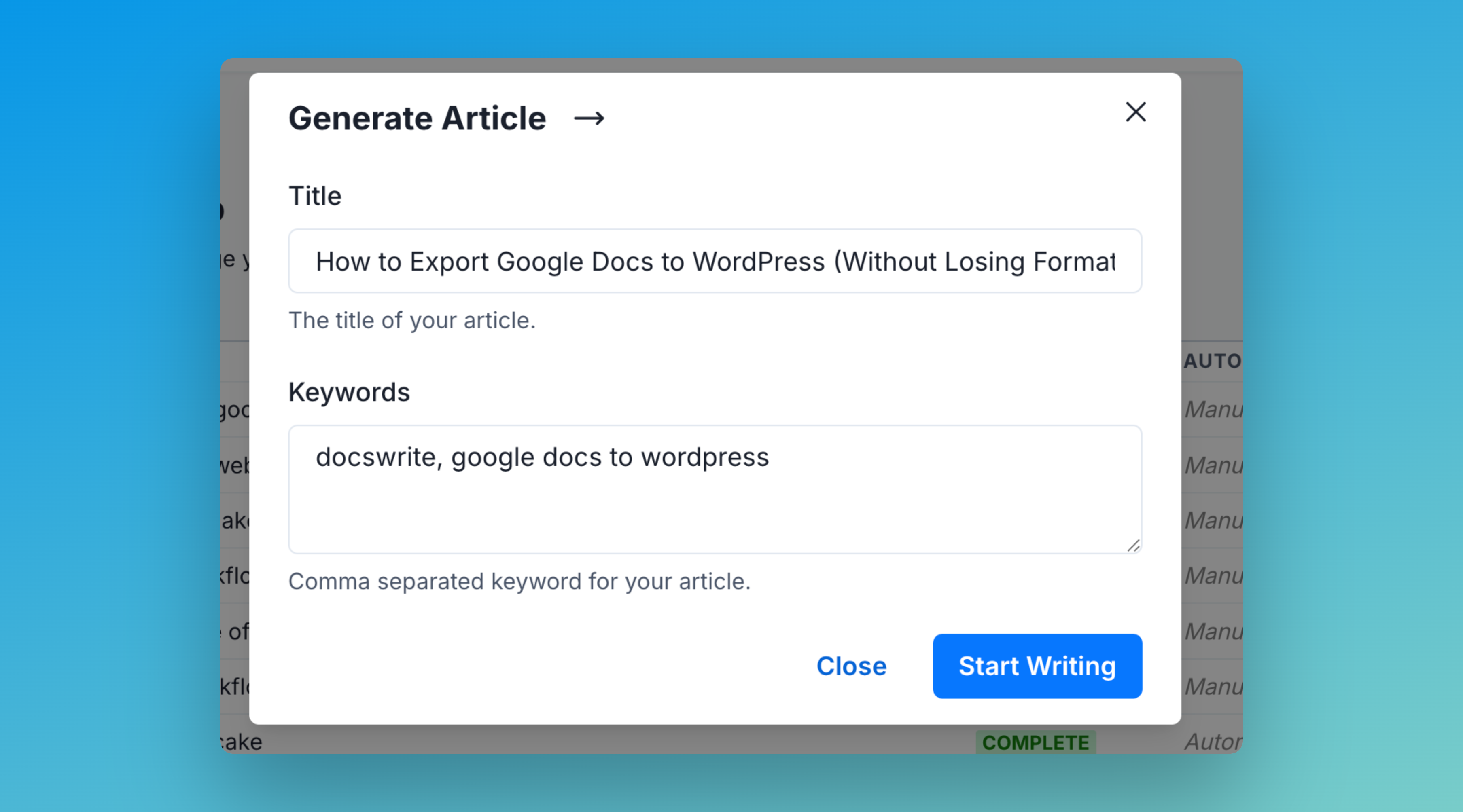 1. Enter your topic, keywords, or a prompt for the AI Writer.
2. Click **Start Writing**. The AI will draft your article in the editor.
## Step 3: Export to WordPress
1. Enter your topic, keywords, or a prompt for the AI Writer.
2. Click **Start Writing**. The AI will draft your article in the editor.
## Step 3: Export to WordPress
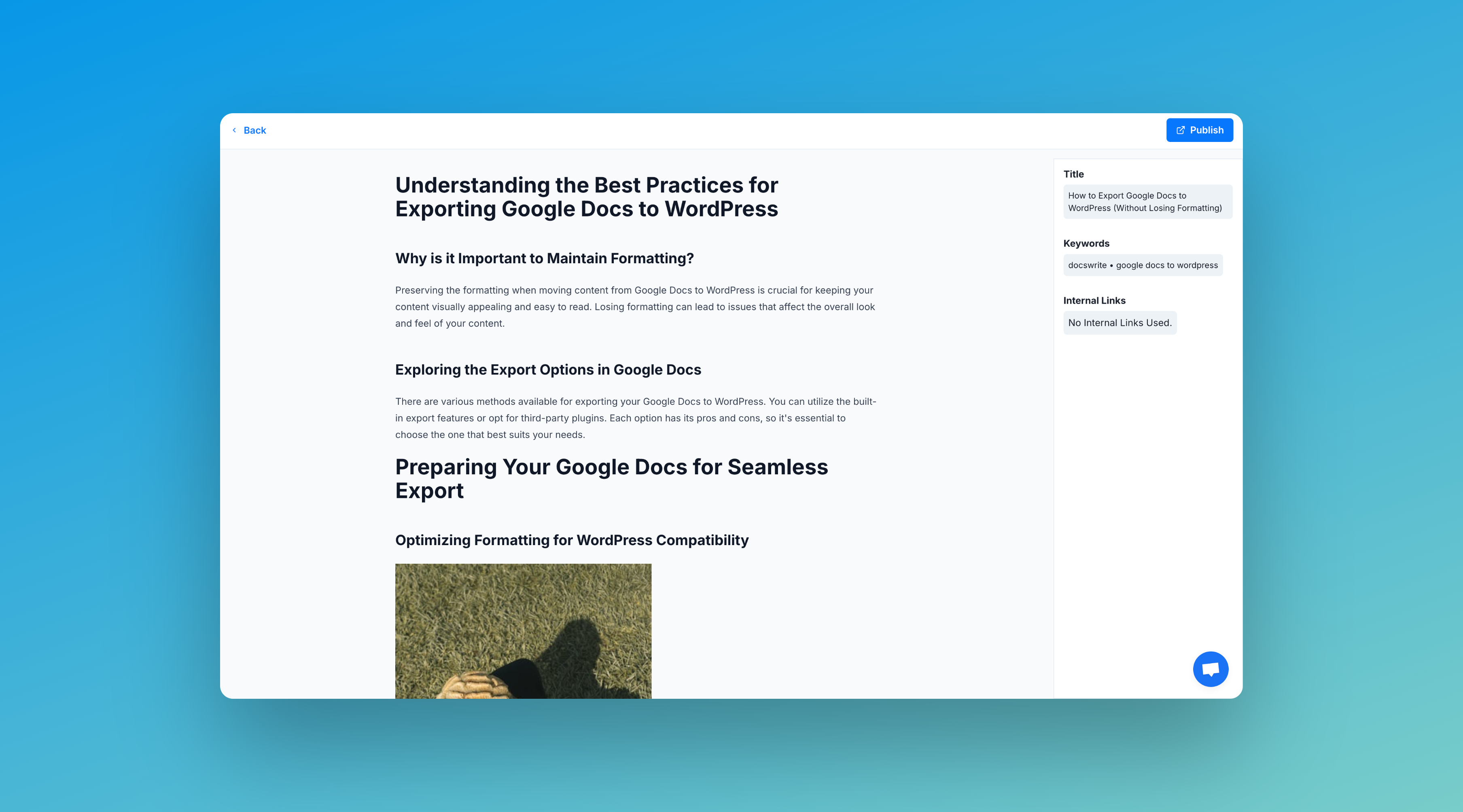 1. Click **Export**
2. Select your connected WordPress site.
3. Configure export options:
* Post type (post or page)
* Categories and tags
* SEO fields (Yoast, RankMath, etc.)
* Featured image and excerpt
4. Confirm and publish.
Docswrite will automatically convert your AI-generated content into a WordPress post or page, preserving formatting, images, and metadata.
1. Click **Export**
2. Select your connected WordPress site.
3. Configure export options:
* Post type (post or page)
* Categories and tags
* SEO fields (Yoast, RankMath, etc.)
* Featured image and excerpt
4. Confirm and publish.
Docswrite will automatically convert your AI-generated content into a WordPress post or page, preserving formatting, images, and metadata.