> ## Documentation Index
> Fetch the complete documentation index at: https://docs.docswrite.com/llms.txt
> Use this file to discover all available pages before exploring further.
# Google Docs to WordPress
> How to export and publish your Google Docs directly to WordPress using Docswrite.
# Publish Google Docs to WordPress
Publishing your Google Docs to WordPress is seamless with Docswrite. Follow these steps to automate your content workflow and eliminate manual copy-paste and formatting issues.
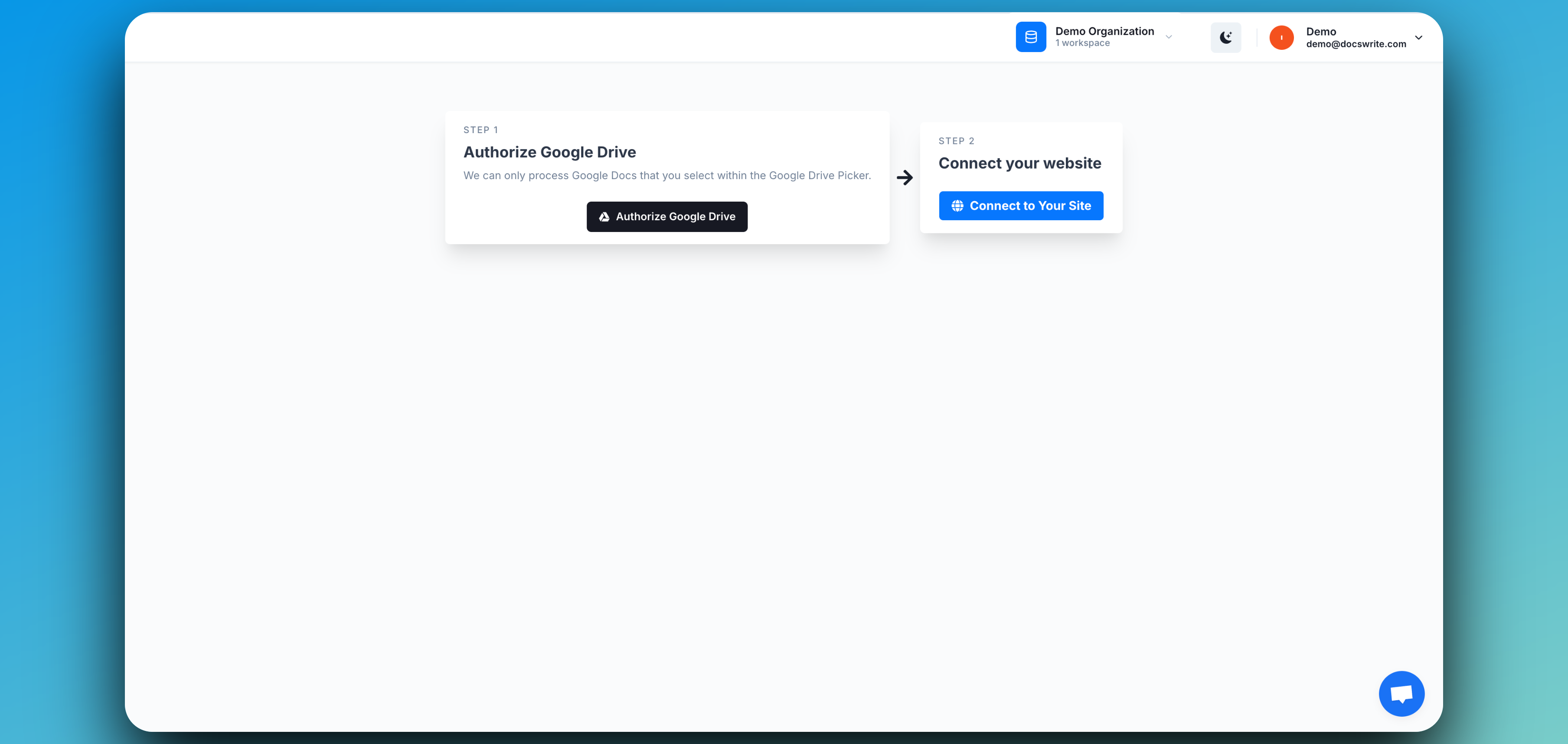 ## Step 1: Connect Your Google Account
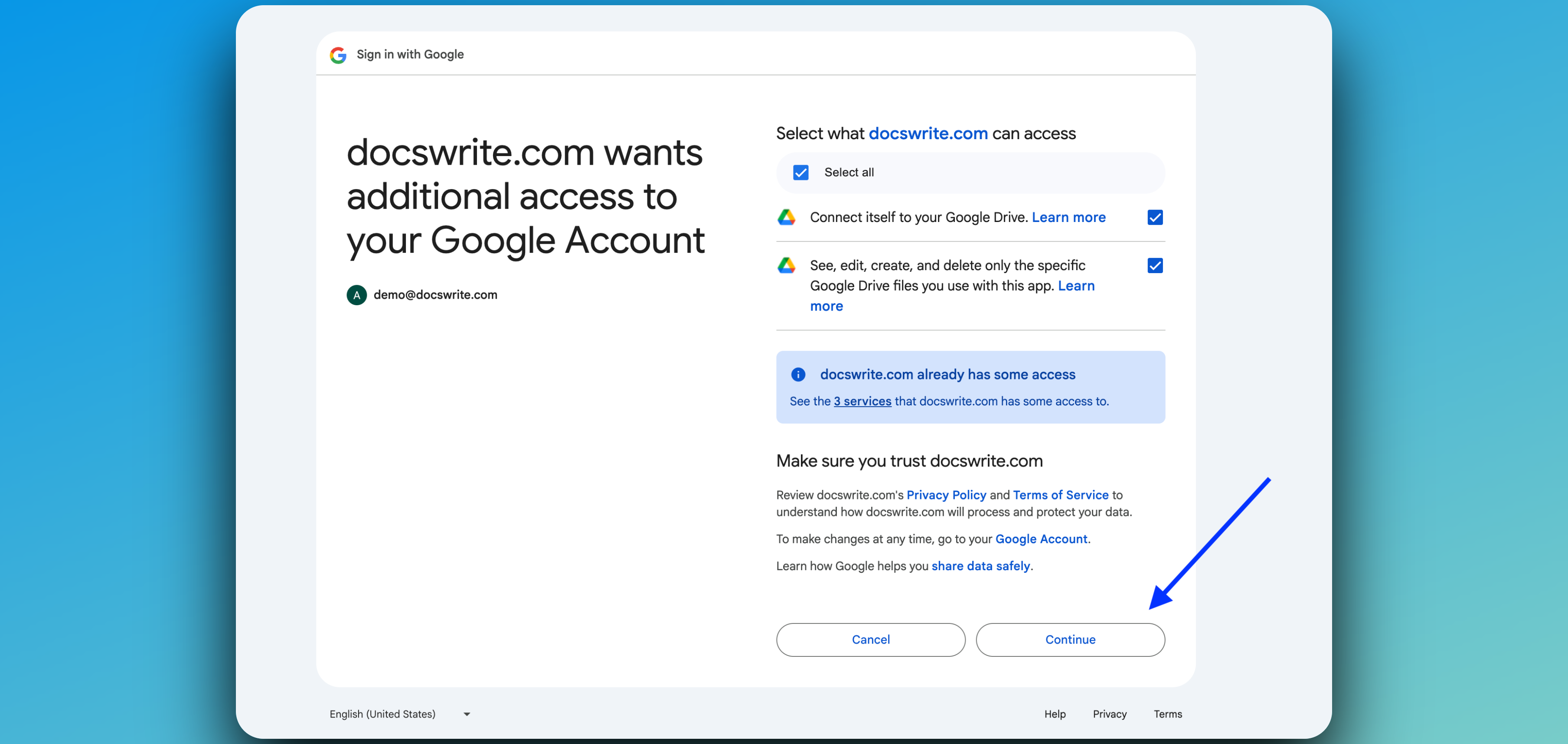
To get started, connect your Google Account so Docswrite can access your Google Docs.
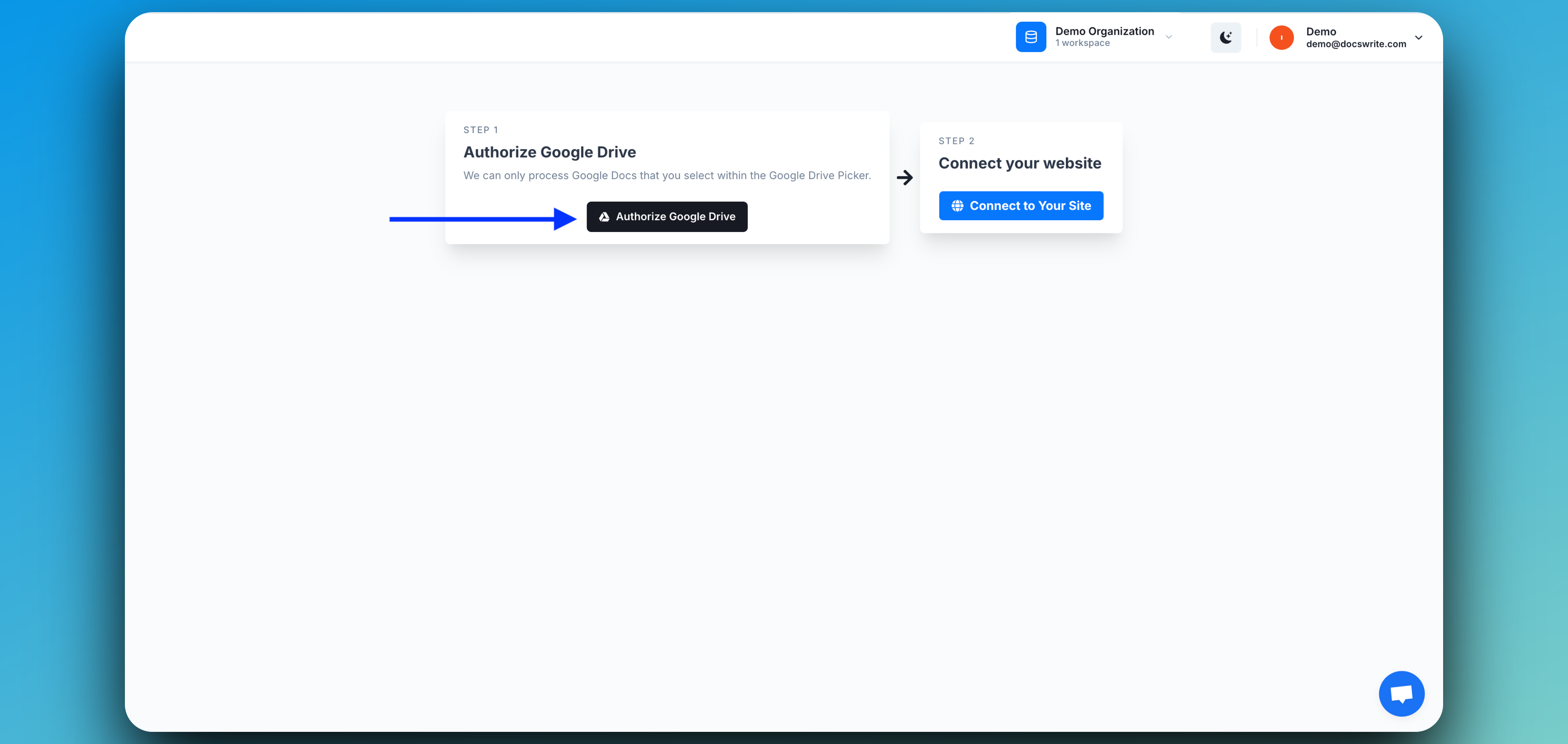
1. In the Docswrite dashboard, click **Connect Google Account**.
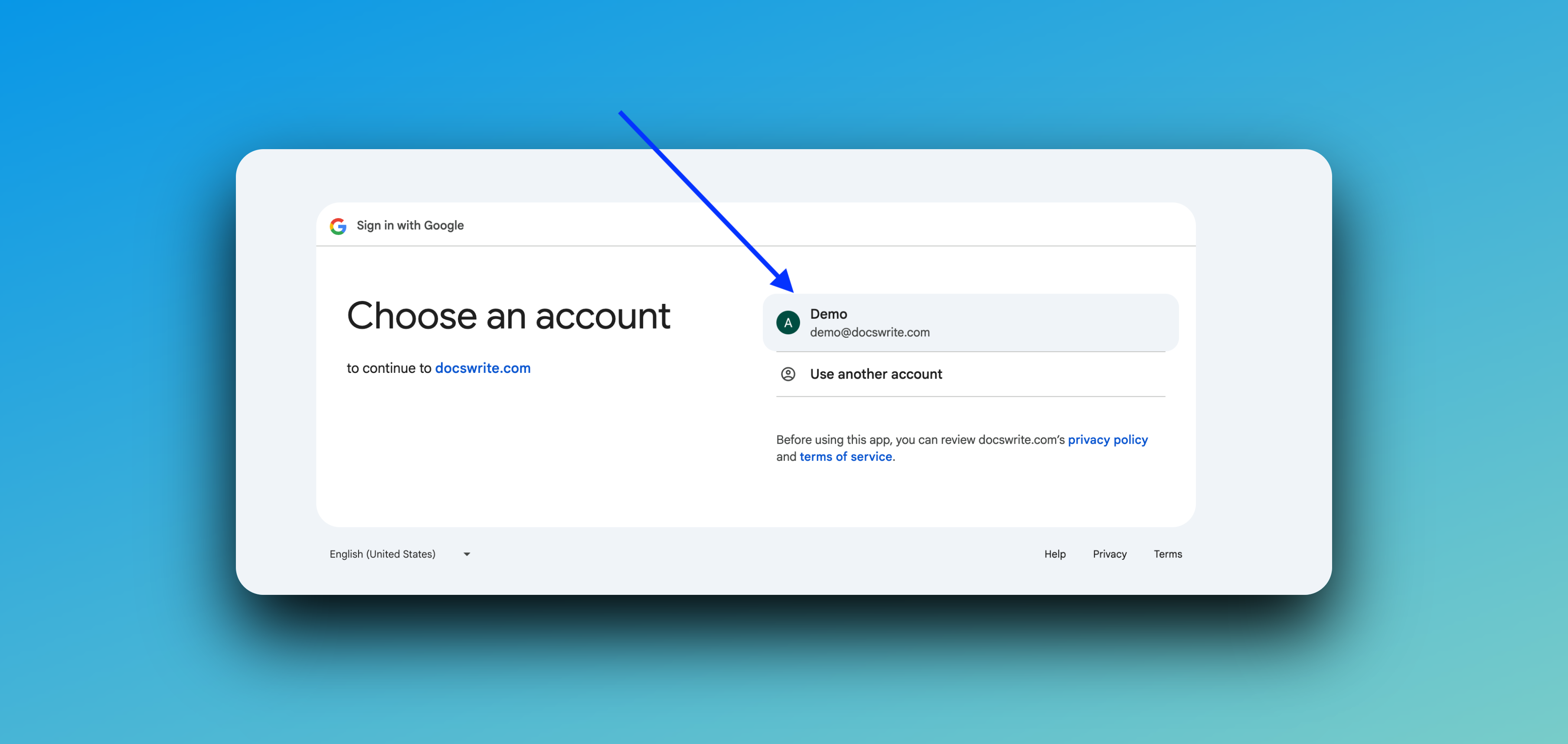
2. Sign in with your Google credentials.
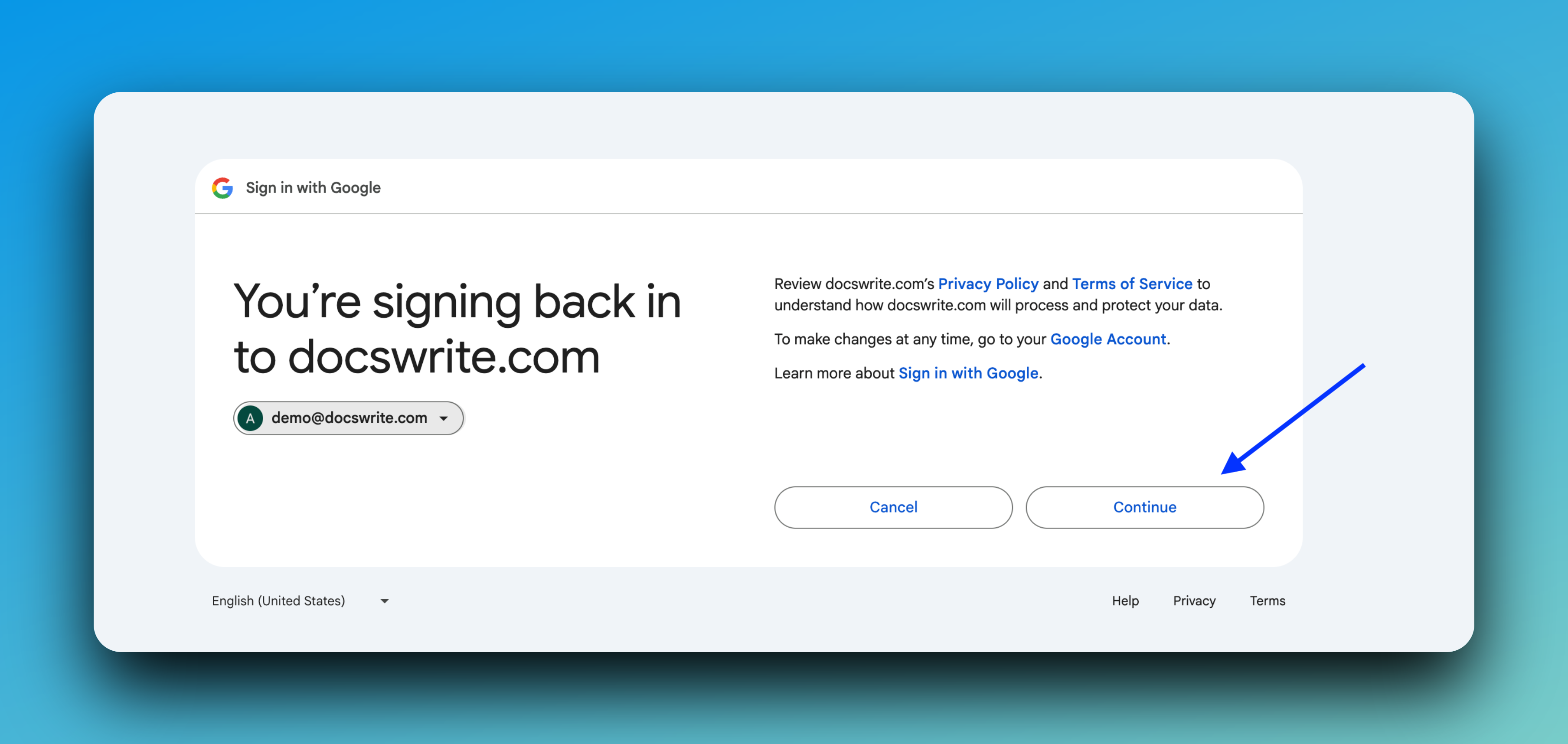
3. Grant Docswrite the requested permissions.
> **Note:** Docswrite only requests the minimal permissions needed to access and export your selected Google Drive documents.
## Step 1: Connect Your Google Account
To get started, connect your Google Account so Docswrite can access your Google Docs.
1. In the Docswrite dashboard, click **Connect Google Account**.
2. Sign in with your Google credentials.
3. Grant Docswrite the requested permissions.
> **Note:** Docswrite only requests the minimal permissions needed to access and export your selected Google Drive documents.
 ## Step 2: Connect Your WordPress Site
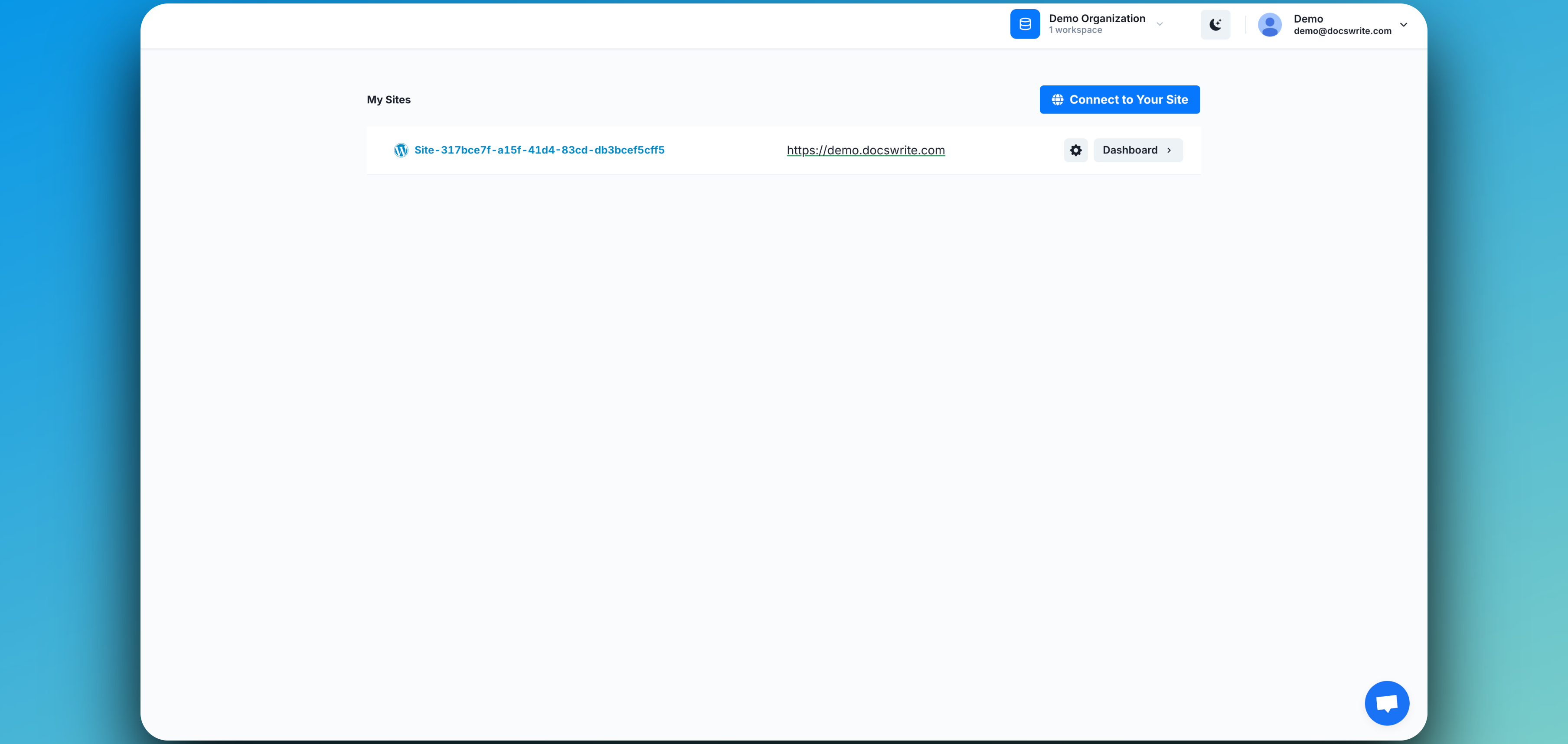
Next, connect your WordPress site to Docswrite. You can do this in one of two ways:
* [Connect via API](/integrations/wordpress/api)
* [Connect via WordPress Plugin](/integrations/wordpress/plugin)
Follow the prompts in the dashboard to complete the connection.
## Step 2: Connect Your WordPress Site
Next, connect your WordPress site to Docswrite. You can do this in one of two ways:
* [Connect via API](/integrations/wordpress/api)
* [Connect via WordPress Plugin](/integrations/wordpress/plugin)
Follow the prompts in the dashboard to complete the connection.
 ## Step 3: Select Your Document(s)
Now you're ready to export your content:
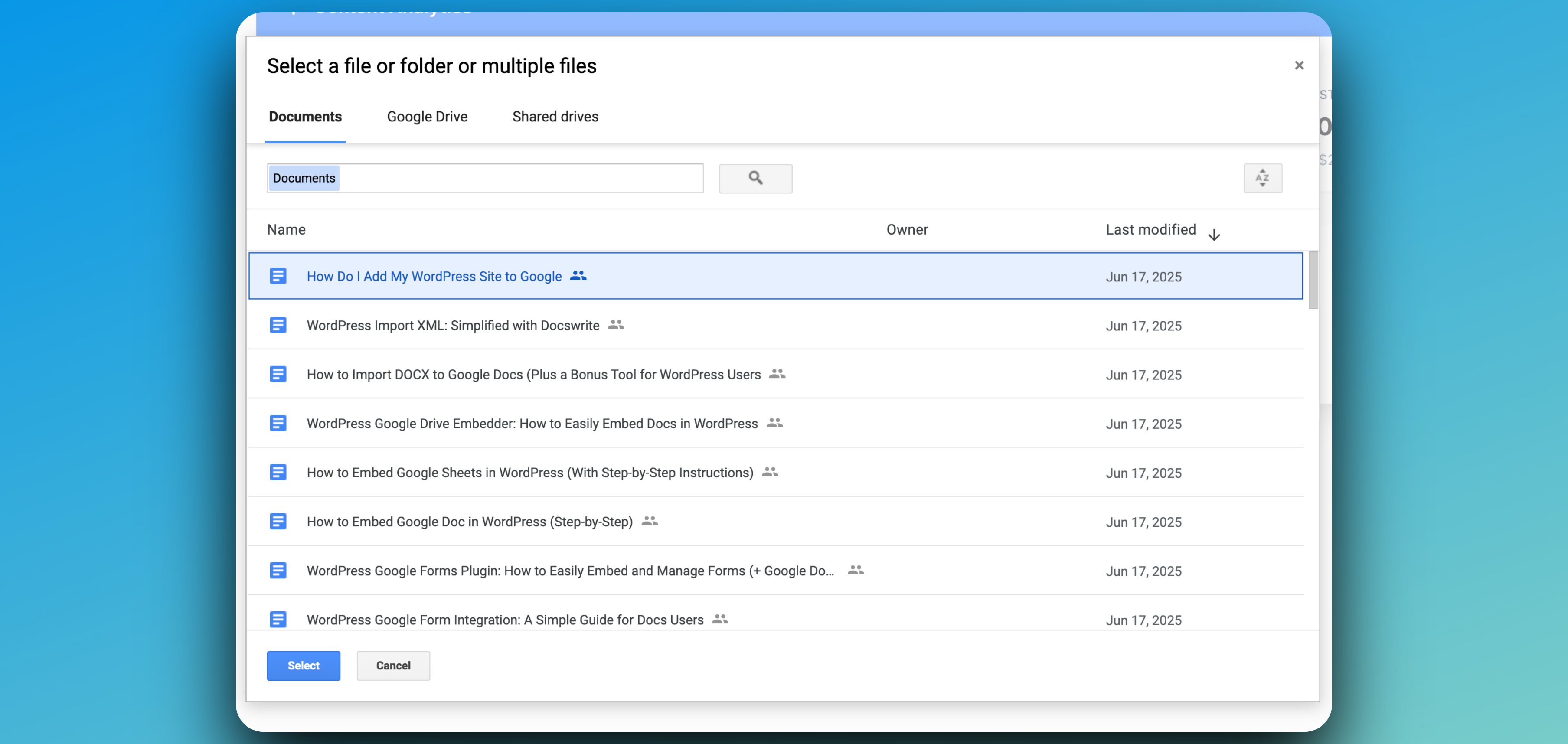
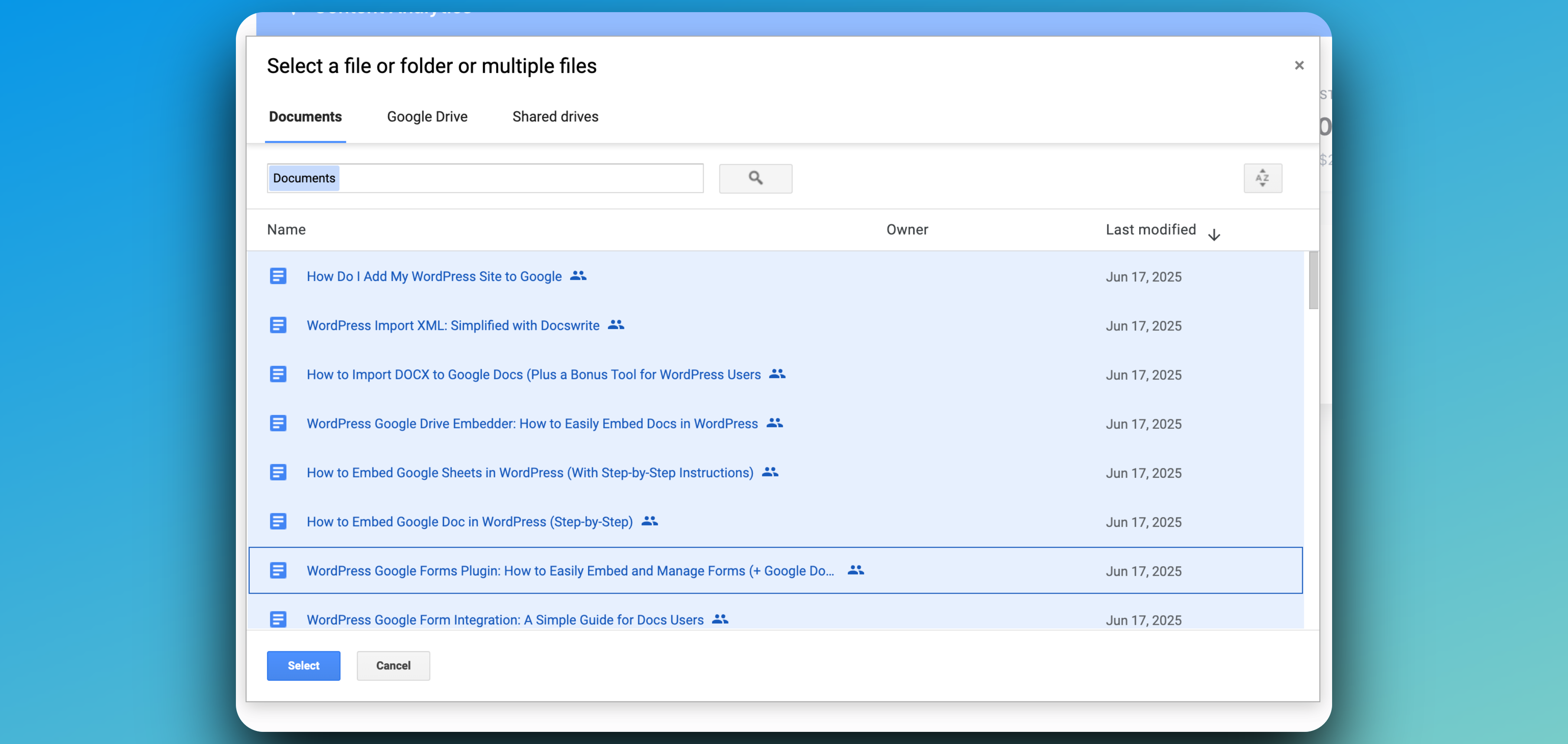
1. In the Docswrite dashboard, select the Google Doc(s) you want to publish.
* For a single file:\\
## Step 3: Select Your Document(s)
Now you're ready to export your content:
1. In the Docswrite dashboard, select the Google Doc(s) you want to publish.
* For a single file:\\
 * For multiple files (bulk export):\\
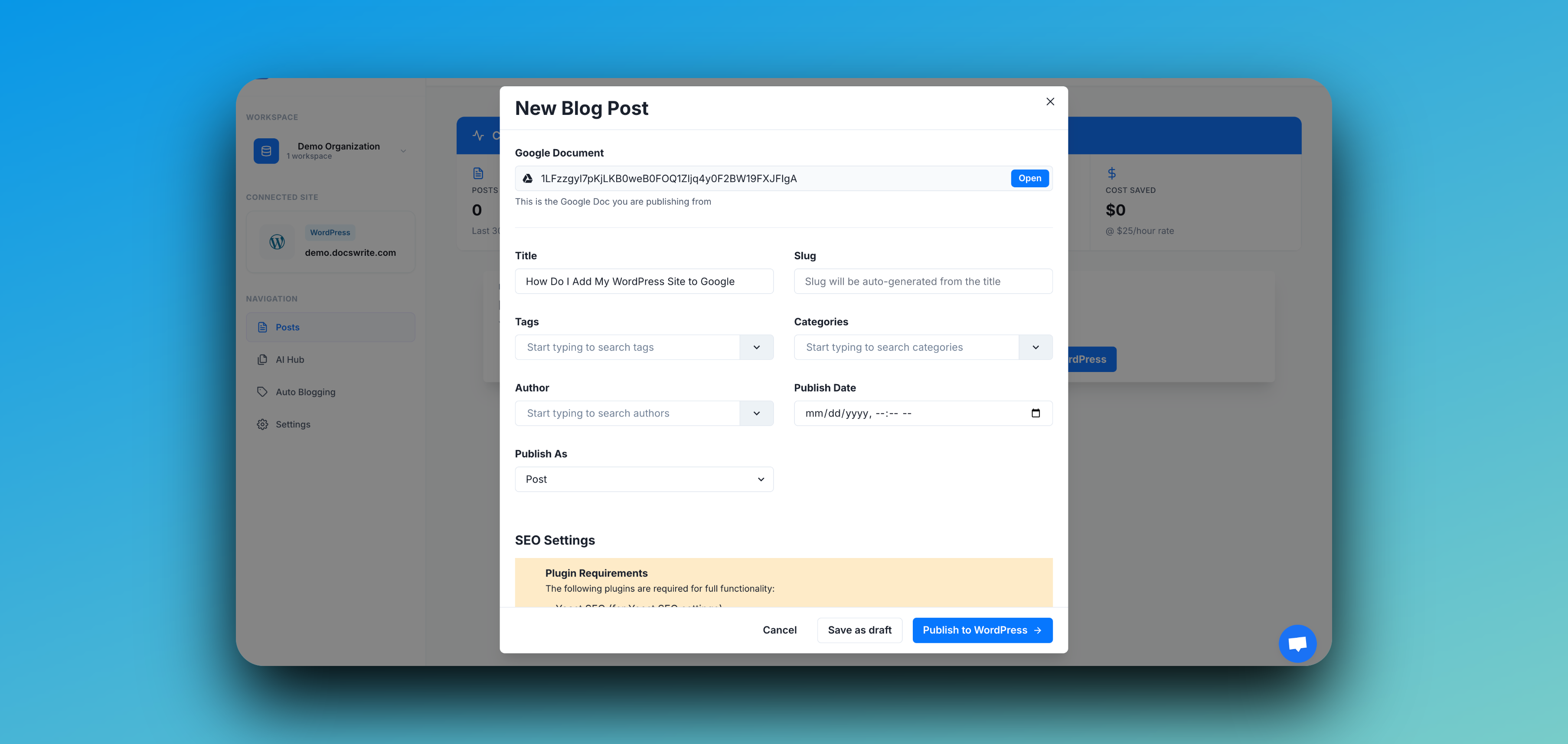
 ## Step 4: Configure Export Settings
Customize your export settings to ensure your Google Doc is published exactly how you want on WordPress.
* Choose your post type (e.g., post, page, or custom type)
* Set categories and tags
* Map custom fields (ACF, SEO, etc.)
* Adjust publishing status (draft, published, scheduled)
* Select additional options like featured image, author, and more
## Step 4: Configure Export Settings
Customize your export settings to ensure your Google Doc is published exactly how you want on WordPress.
* Choose your post type (e.g., post, page, or custom type)
* Set categories and tags
* Map custom fields (ACF, SEO, etc.)
* Adjust publishing status (draft, published, scheduled)
* Select additional options like featured image, author, and more
 > 💡 **Tip:** For a detailed explanation of each export setting and supported features, see our [Export Settings Guide](/guides/export-settings).
Once you're happy with your configuration, click **Publish to WordPress** to publish your document to WordPress in just one click!
## Step 5: Publish Your Content Successfully 🎉
Once you click **Publish to WordPress**, Docswrite will handle the export and publishing process automatically. Your Google Doc will appear on your WordPress site with all formatting, images, and metadata intact.
> 💡 **Tip:** For a detailed explanation of each export setting and supported features, see our [Export Settings Guide](/guides/export-settings).
Once you're happy with your configuration, click **Publish to WordPress** to publish your document to WordPress in just one click!
## Step 5: Publish Your Content Successfully 🎉
Once you click **Publish to WordPress**, Docswrite will handle the export and publishing process automatically. Your Google Doc will appear on your WordPress site with all formatting, images, and metadata intact.
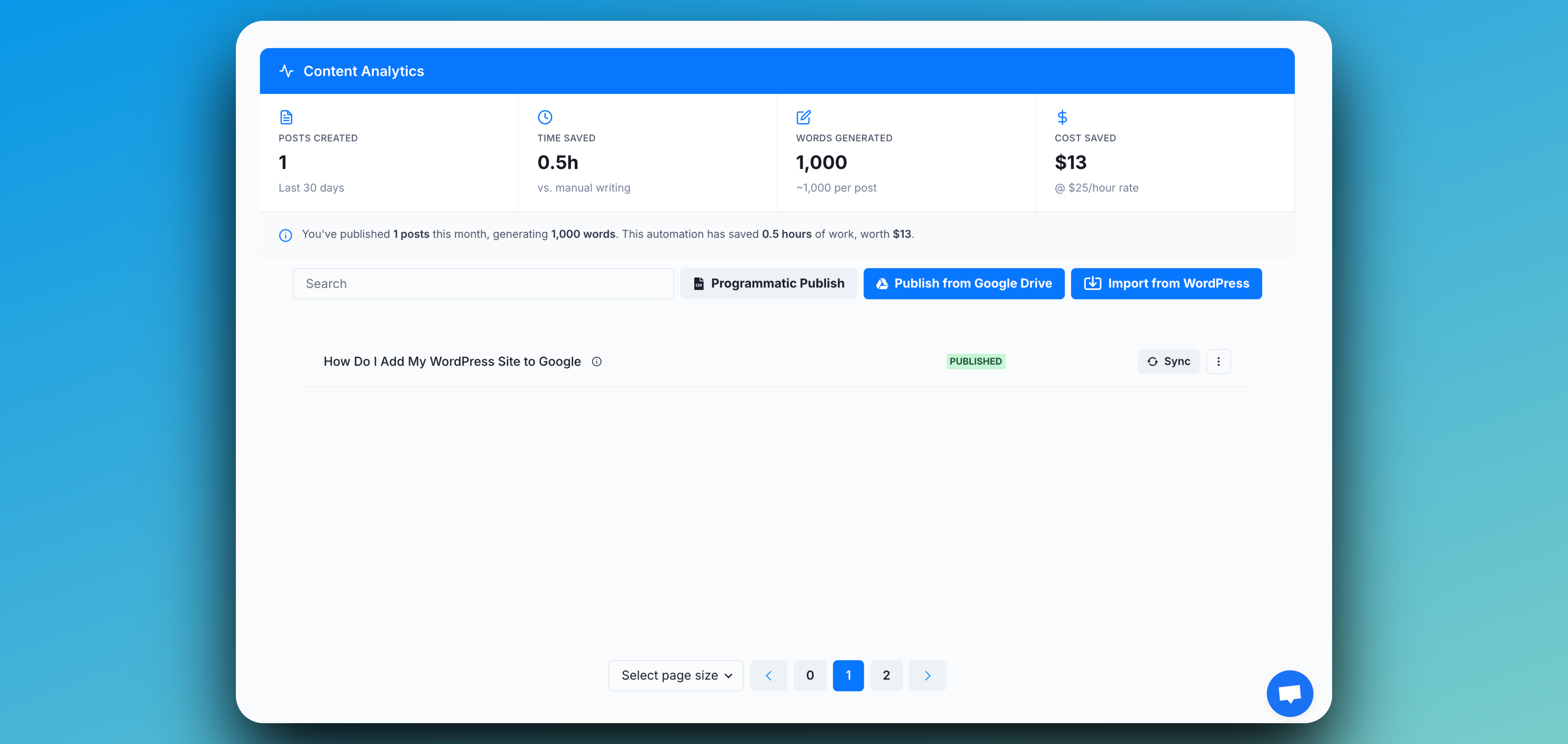 🎉 **Well done!** Your content is now live on WordPress. You can view, edit, or update it directly from your Docswrite dashboard.
## Using Our Template Google Doc
To help you get started quickly and understand how to structure your documents for optimal WordPress publishing, we've created a comprehensive template Google Doc that demonstrates all the available fields and their purposes.
**[📄 Access Our Template Google Doc](https://docs.google.com/document/d/1qXrzl39WJKYt1AnFxq7sOKmlXmdKa8N5Kuk7Al7d5XI/edit?usp=sharing)**
### Understanding the Template Structure
Our template includes a table that maps various WordPress fields to their corresponding values. Here's what each field means and how it affects your published content:
| Field | Description | WordPress Impact |
| ------------------------------------- | ---------------------------------------- | --------------------------------------------------------------------------------------- |
| **categories** | Comma-separated list of post categories | Assigns your post to specific WordPress categories (e.g., "News, Story") |
| **excerpt** | Brief description of your content | Appears in WordPress when excerpts are enabled under headlines |
| **newspack\_article\_summary** | Additional article context | Adds supplementary information like "Part 1 of a 3-part series about article templates" |
| **newspack\_article\_summary\_title** | Title for the article summary | Creates a summary title like "Article Templates Explained" |
| **newspack\_post\_subtitle** | Subtitle or deckhead | Provides additional context when your headline needs more explanation |
| **yoast\_focuskw** | Primary keyword for SEO | Sets the focus keyword for Yoast SEO optimization |
| **yoast\_title** | SEO title for search results | Controls what appears under your headline in Google search results |
| **yoast\_metadesc** | Meta description for SEO | Provides the description that appears in search engine results |
| **acf\_test** | Custom ACF field example | Shows additional custom field usage |
| **author** | Post author name | Sets the author of the published post |
| **title** | Main post title | The primary headline of your published content |
| **slug** | URL-friendly post slug | Creates the URL structure for your post |
| **post\_type** | Control the publication custom post type | Publish the content as the specified custom type (e.g "book\_type") |
### How to Use the Template
1. **Copy the template**: Make a copy of our template Google Doc to your own Google Drive
2. **Customize the fields**: Replace the example values with your actual content
3. **Add your content**: Write your main content below the table
4. **Publish**: Use Docswrite to export directly to WordPress
The template ensures that all your WordPress metadata, SEO settings, and custom fields are properly configured before publishing, saving you time and ensuring consistency across your content.
🎉 **Well done!** Your content is now live on WordPress. You can view, edit, or update it directly from your Docswrite dashboard.
## Using Our Template Google Doc
To help you get started quickly and understand how to structure your documents for optimal WordPress publishing, we've created a comprehensive template Google Doc that demonstrates all the available fields and their purposes.
**[📄 Access Our Template Google Doc](https://docs.google.com/document/d/1qXrzl39WJKYt1AnFxq7sOKmlXmdKa8N5Kuk7Al7d5XI/edit?usp=sharing)**
### Understanding the Template Structure
Our template includes a table that maps various WordPress fields to their corresponding values. Here's what each field means and how it affects your published content:
| Field | Description | WordPress Impact |
| ------------------------------------- | ---------------------------------------- | --------------------------------------------------------------------------------------- |
| **categories** | Comma-separated list of post categories | Assigns your post to specific WordPress categories (e.g., "News, Story") |
| **excerpt** | Brief description of your content | Appears in WordPress when excerpts are enabled under headlines |
| **newspack\_article\_summary** | Additional article context | Adds supplementary information like "Part 1 of a 3-part series about article templates" |
| **newspack\_article\_summary\_title** | Title for the article summary | Creates a summary title like "Article Templates Explained" |
| **newspack\_post\_subtitle** | Subtitle or deckhead | Provides additional context when your headline needs more explanation |
| **yoast\_focuskw** | Primary keyword for SEO | Sets the focus keyword for Yoast SEO optimization |
| **yoast\_title** | SEO title for search results | Controls what appears under your headline in Google search results |
| **yoast\_metadesc** | Meta description for SEO | Provides the description that appears in search engine results |
| **acf\_test** | Custom ACF field example | Shows additional custom field usage |
| **author** | Post author name | Sets the author of the published post |
| **title** | Main post title | The primary headline of your published content |
| **slug** | URL-friendly post slug | Creates the URL structure for your post |
| **post\_type** | Control the publication custom post type | Publish the content as the specified custom type (e.g "book\_type") |
### How to Use the Template
1. **Copy the template**: Make a copy of our template Google Doc to your own Google Drive
2. **Customize the fields**: Replace the example values with your actual content
3. **Add your content**: Write your main content below the table
4. **Publish**: Use Docswrite to export directly to WordPress
The template ensures that all your WordPress metadata, SEO settings, and custom fields are properly configured before publishing, saving you time and ensuring consistency across your content.