> ## Documentation Index
> Fetch the complete documentation index at: https://docs.docswrite.com/llms.txt
> Use this file to discover all available pages before exploring further.
# Programmatic SEO
> How to generate and publish thousands of SEO-optimized pages programmatically using Google Docs and Docswrite.
# Programmatic SEO (PSEO) with Docswrite
Programmatic SEO (PSEO) allows you to generate and publish thousands of SEO-optimized pages at scale, targeting long-tail keywords and increasing your website's organic reach. With Docswrite, you can automate the creation and publishing of these pages directly from Google Docs to your CMS, such as WordPress.
## What is Programmatic SEO?
Programmatic SEO is the process of using automation to create large numbers of unique, high-quality pages that target specific keyword variations or data-driven topics. This approach is ideal for:
* Location-based landing pages (e.g., "Best dentists in \[City]")
* Product or service variations
* Data-driven content (e.g., statistics, directories, templates)
* Comparison pages
## How Docswrite Enables Programmatic SEO
Docswrite streamlines the PSEO workflow by letting you:
* **Create content templates in Google Docs** - create content in Google Docs with curly barces to create a templated content
* **Select your Google Sheet** - containing the variables for each page
* **Automatically generate unique Google Docs** for each data row, replacing placeholders with actual values
* **Bulk export and publish** all generated docs to your CMS (WordPress, Contentful, etc.) with proper formatting, images, and SEO metadata
## Step-by-Step: Launching a Programmatic SEO Campaign
### 1. Prepare Your Content Template
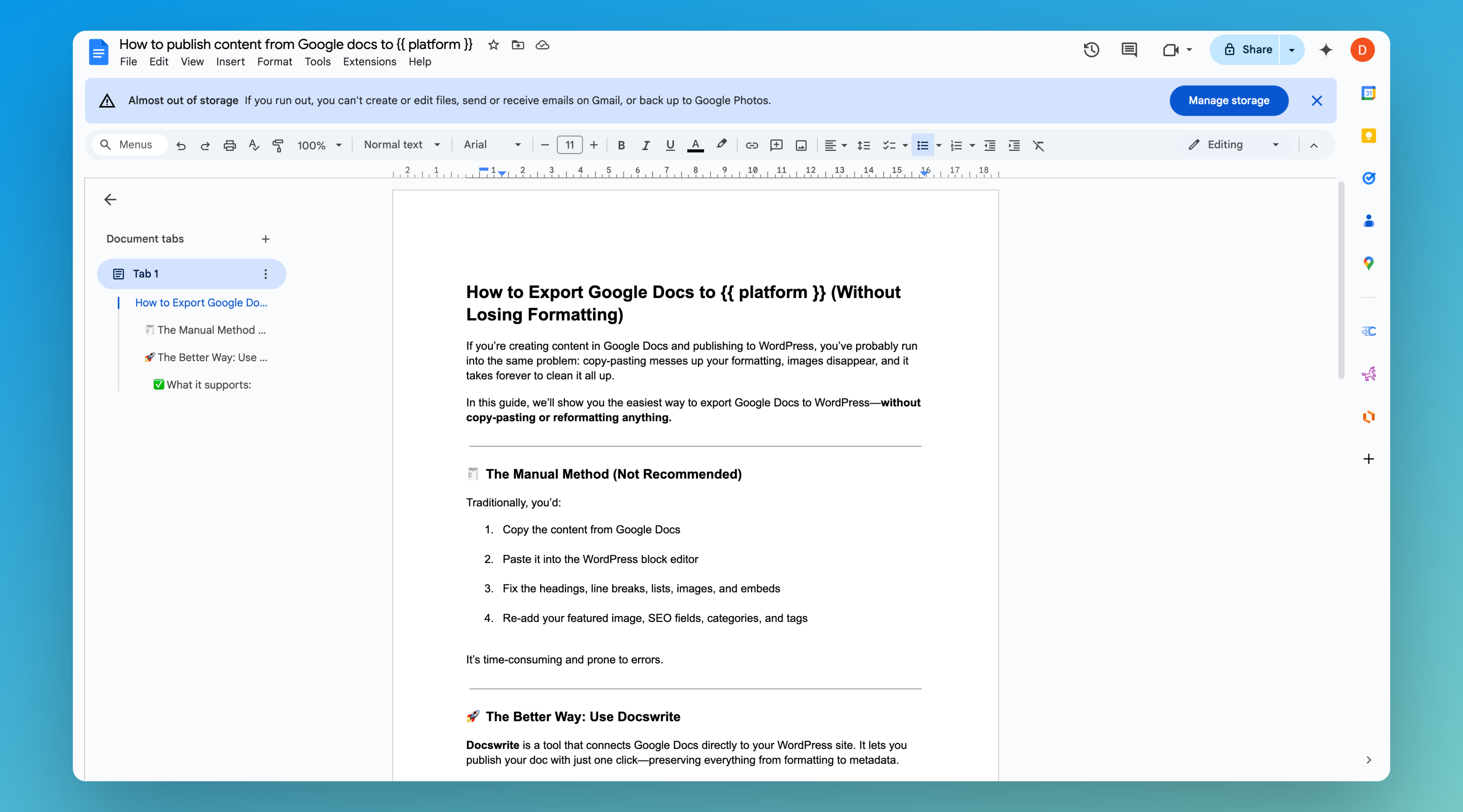
1. In Google Docs, write a template for your page. Use curly braces for variables, e.g.:
```
# Best {{service}} in {{city}}
Looking for the best {{service}} in {{city}}? Our team offers top-rated {{service}} at affordable prices.
```
2. Save your template in your Google Drive.
### 2. Prepare Your Data Source
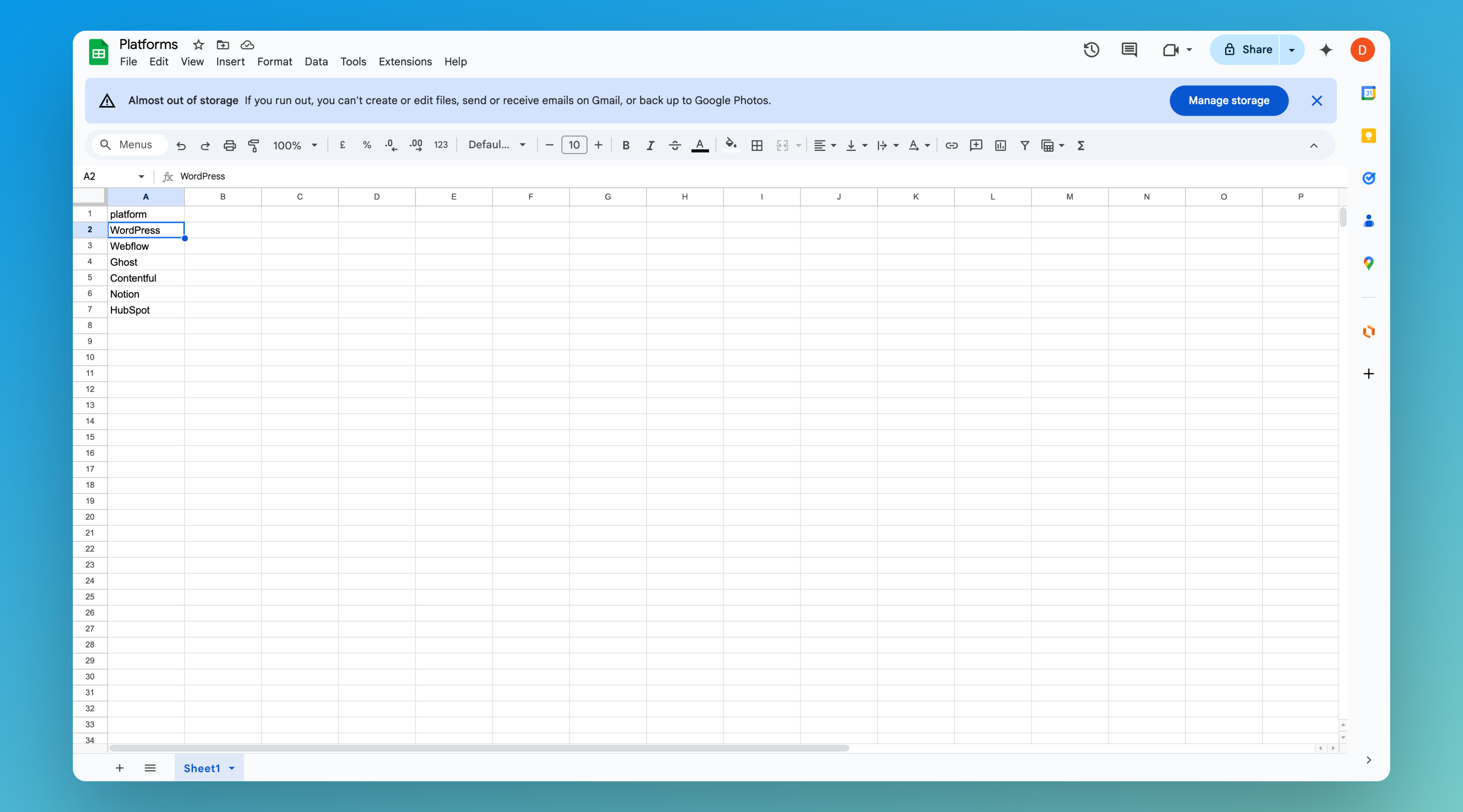
* Create a Google Sheet with columns matching your placeholders (e.g., `city`, `service`, `price`).
* Each row represents a unique page.
### 3. Connect Docswrite
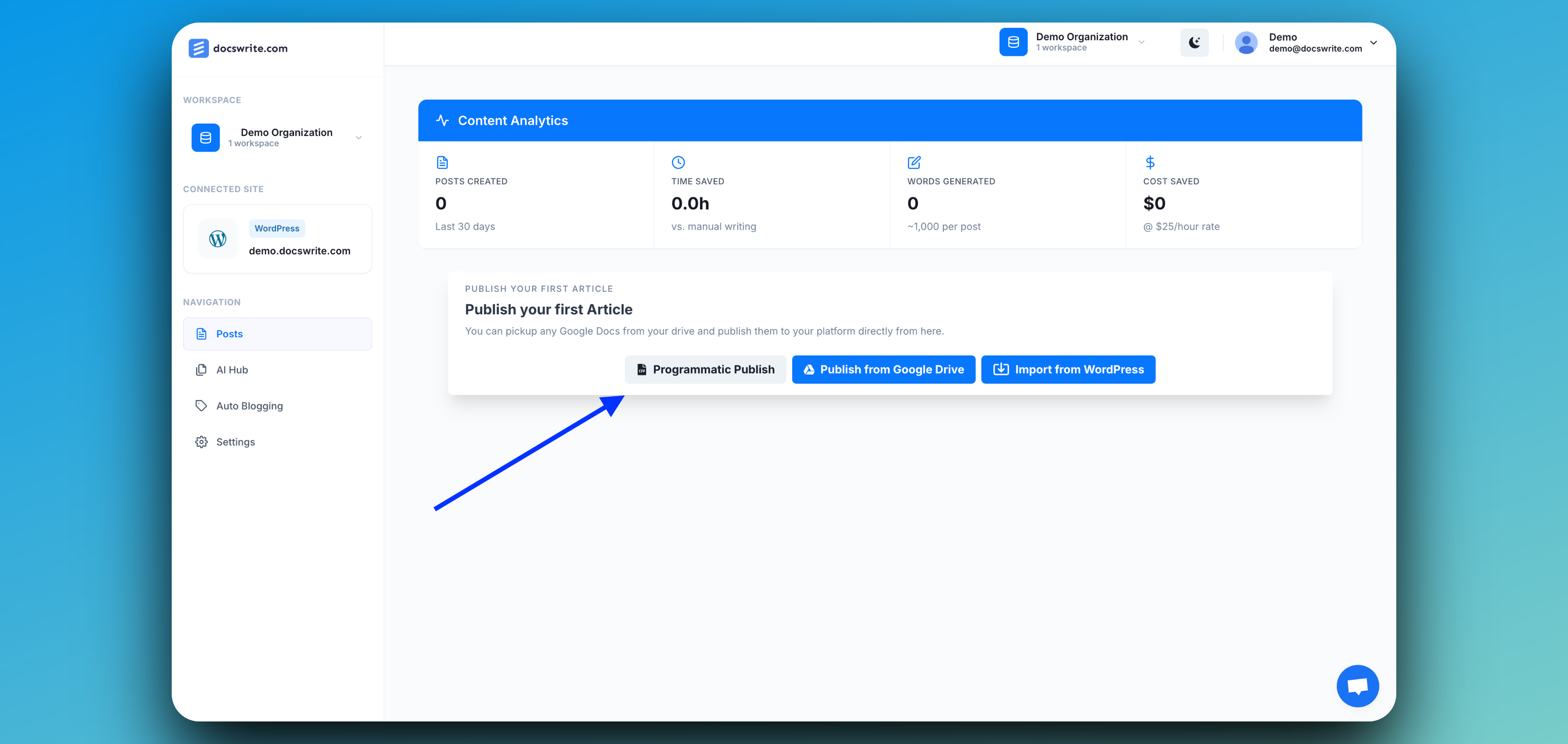
Go to the Docswrite dashoard and click on **Progarmmatic Publish**
### 4. Generate Pages Programmatically
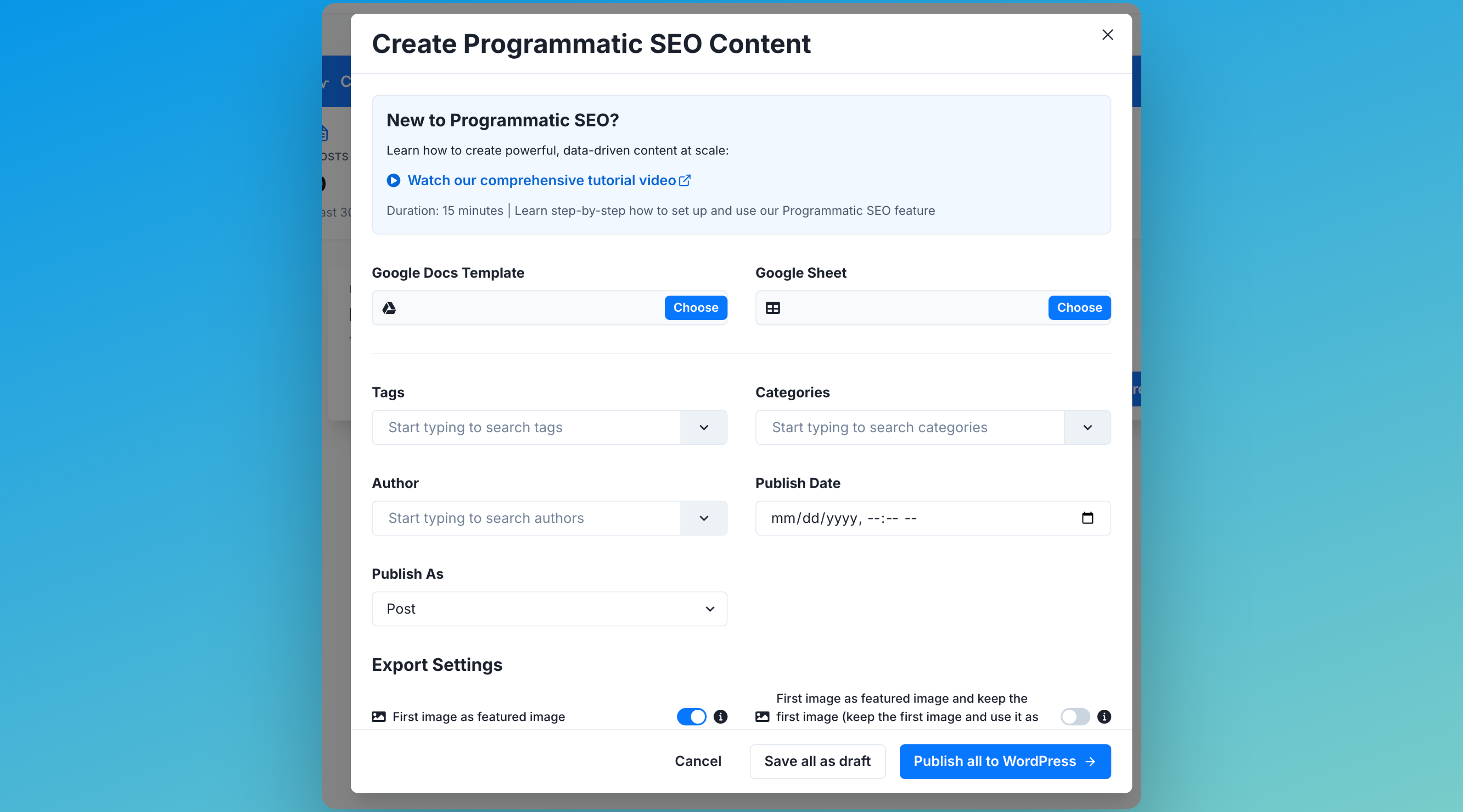
1. In Docswrite, select your content template from Google Docs
2. Upload your Google Sheet or connect your data source.
3. Docswrite will generate a unique Google Doc for each row, replacing placeholders with your data.
### 5. 🎉 Bulk Export and Publish
1. Select all generated Google Docs.
2. Click **Export** and choose your connected CMS.
3. Configure export options (post type, categories, tags, SEO fields).
4. Click **Publish** to send all pages live.
Docswrite will automatically convert each Google Doc into a published page, preserving formatting, images, and metadata.
 1. In Google Docs, write a template for your page. Use curly braces for variables, e.g.:
```
# Best {{service}} in {{city}}
Looking for the best {{service}} in {{city}}? Our team offers top-rated {{service}} at affordable prices.
```
2. Save your template in your Google Drive.
### 2. Prepare Your Data Source
1. In Google Docs, write a template for your page. Use curly braces for variables, e.g.:
```
# Best {{service}} in {{city}}
Looking for the best {{service}} in {{city}}? Our team offers top-rated {{service}} at affordable prices.
```
2. Save your template in your Google Drive.
### 2. Prepare Your Data Source
 * Create a Google Sheet with columns matching your placeholders (e.g., `city`, `service`, `price`).
* Each row represents a unique page.
### 3. Connect Docswrite
Go to the Docswrite dashoard and click on **Progarmmatic Publish**
* Create a Google Sheet with columns matching your placeholders (e.g., `city`, `service`, `price`).
* Each row represents a unique page.
### 3. Connect Docswrite
Go to the Docswrite dashoard and click on **Progarmmatic Publish**
 ### 4. Generate Pages Programmatically
1. In Docswrite, select your content template from Google Docs
2. Upload your Google Sheet or connect your data source.
3. Docswrite will generate a unique Google Doc for each row, replacing placeholders with your data.
### 4. Generate Pages Programmatically
1. In Docswrite, select your content template from Google Docs
2. Upload your Google Sheet or connect your data source.
3. Docswrite will generate a unique Google Doc for each row, replacing placeholders with your data.
 ### 5. 🎉 Bulk Export and Publish
1. Select all generated Google Docs.
2. Click **Export** and choose your connected CMS.
3. Configure export options (post type, categories, tags, SEO fields).
4. Click **Publish** to send all pages live.
### 5. 🎉 Bulk Export and Publish
1. Select all generated Google Docs.
2. Click **Export** and choose your connected CMS.
3. Configure export options (post type, categories, tags, SEO fields).
4. Click **Publish** to send all pages live.
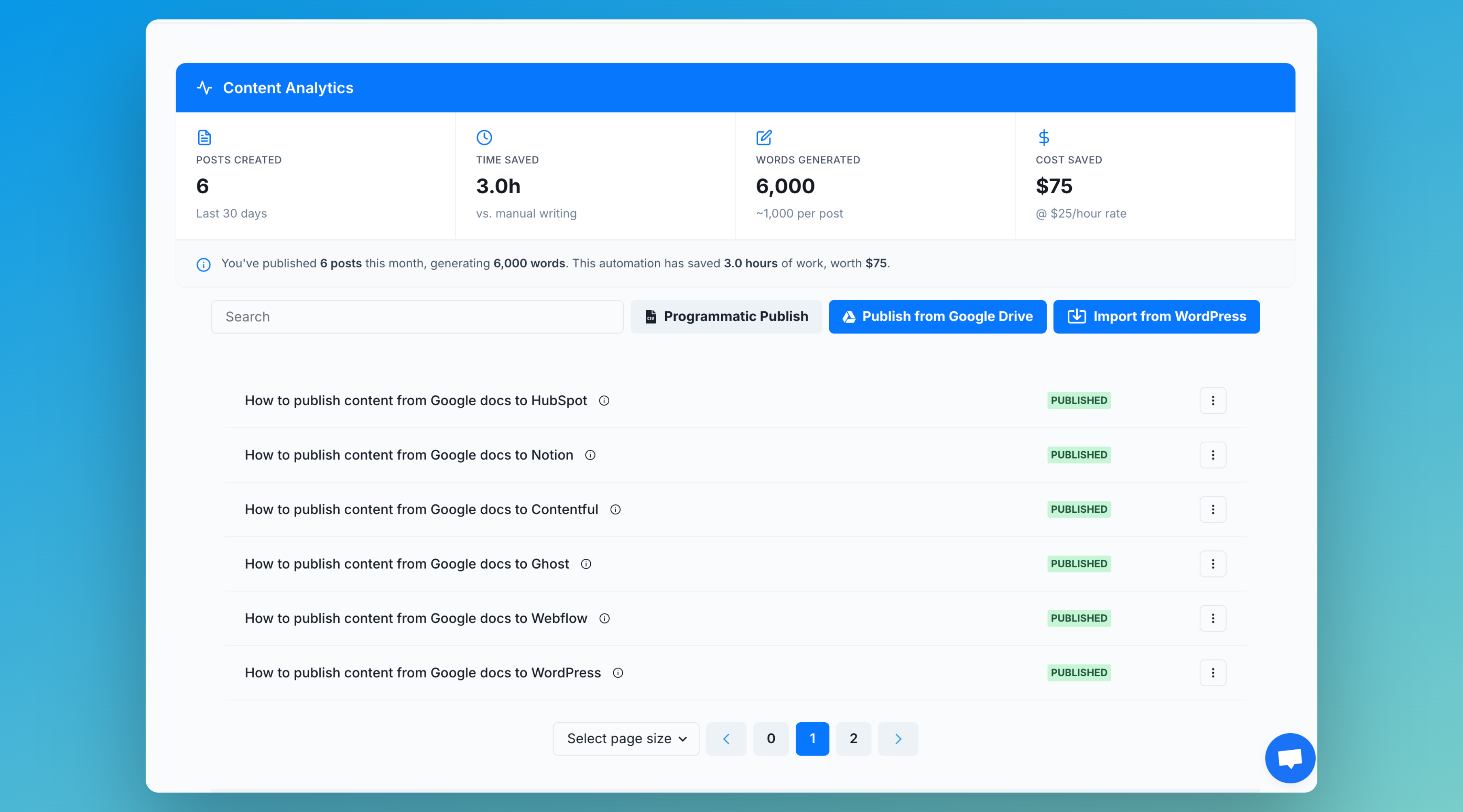 Docswrite will automatically convert each Google Doc into a published page, preserving formatting, images, and metadata.