> ## Documentation Index
> Fetch the complete documentation index at: https://docs.docswrite.com/llms.txt
> Use this file to discover all available pages before exploring further.
# WordPress to Google Doc
> How to export and backup your WordPress content directly to Google Docs using Docswrite.
# Export WordPress Content to Google Docs
Exporting your WordPress content to Google Docs is seamless with Docswrite. Follow these steps to backup your content, collaborate with editors, or create drafts in Google Docs from your existing WordPress posts and pages.
 ## Step 1: Connect Your Google Account
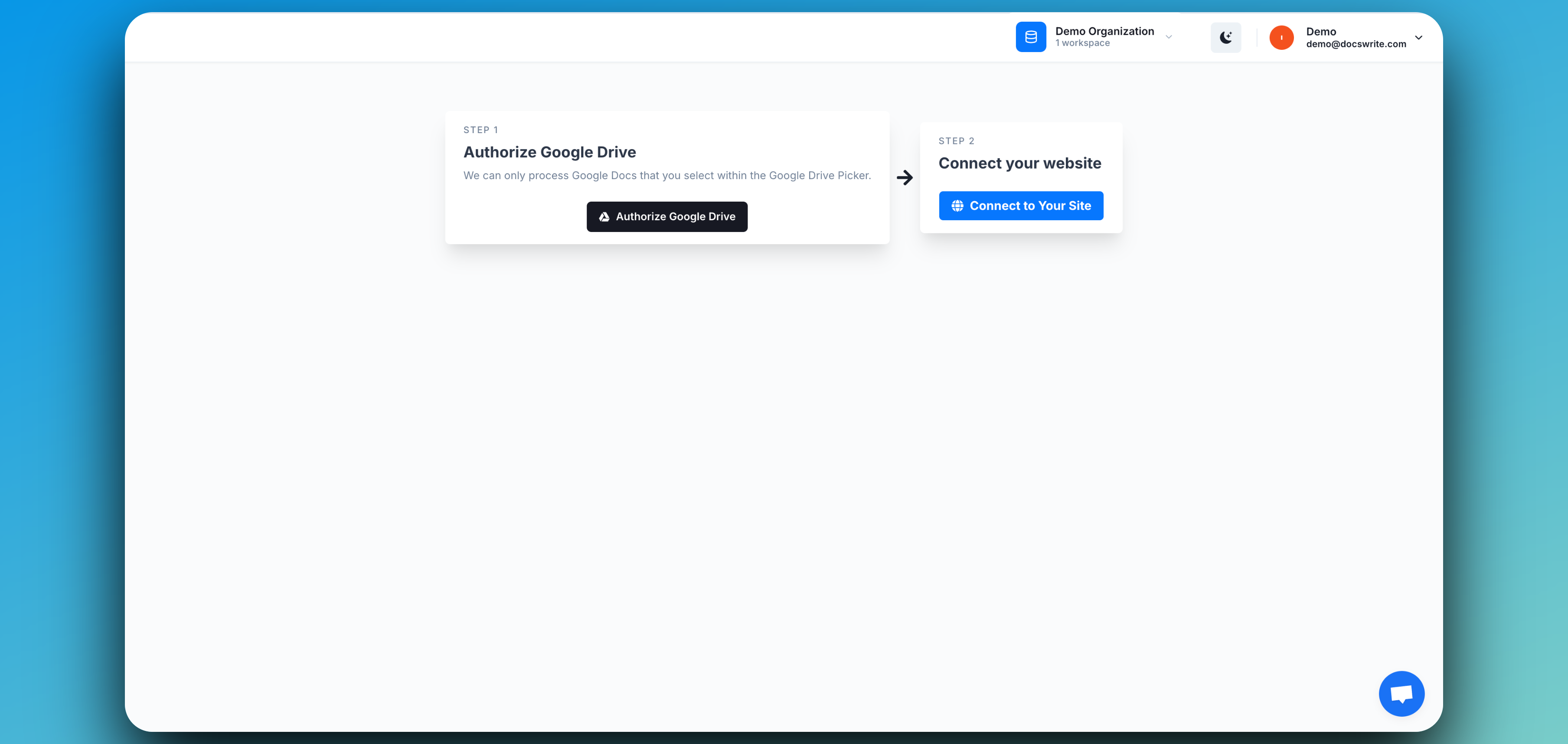
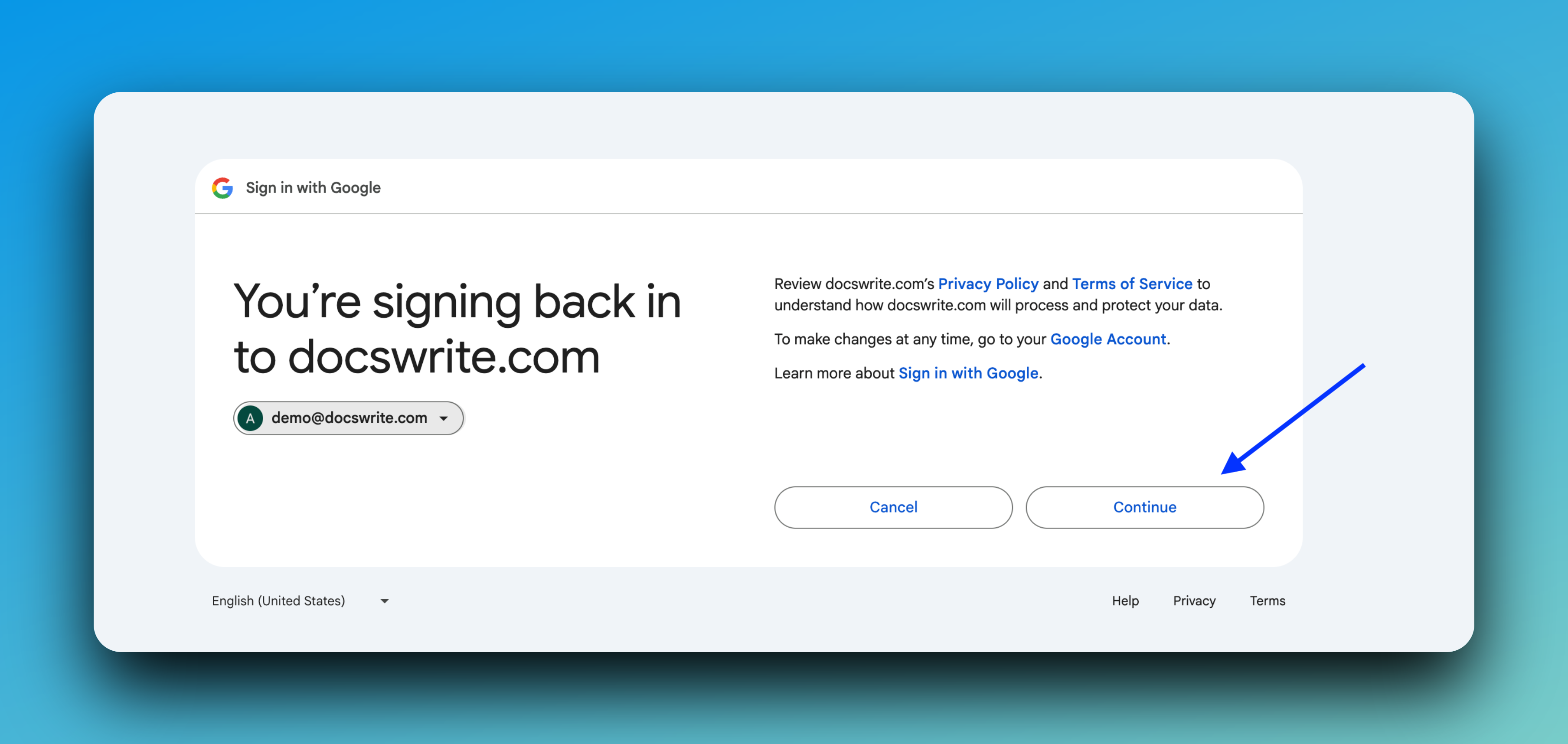
To get started, connect your Google Account so Docswrite can access your Google Docs.
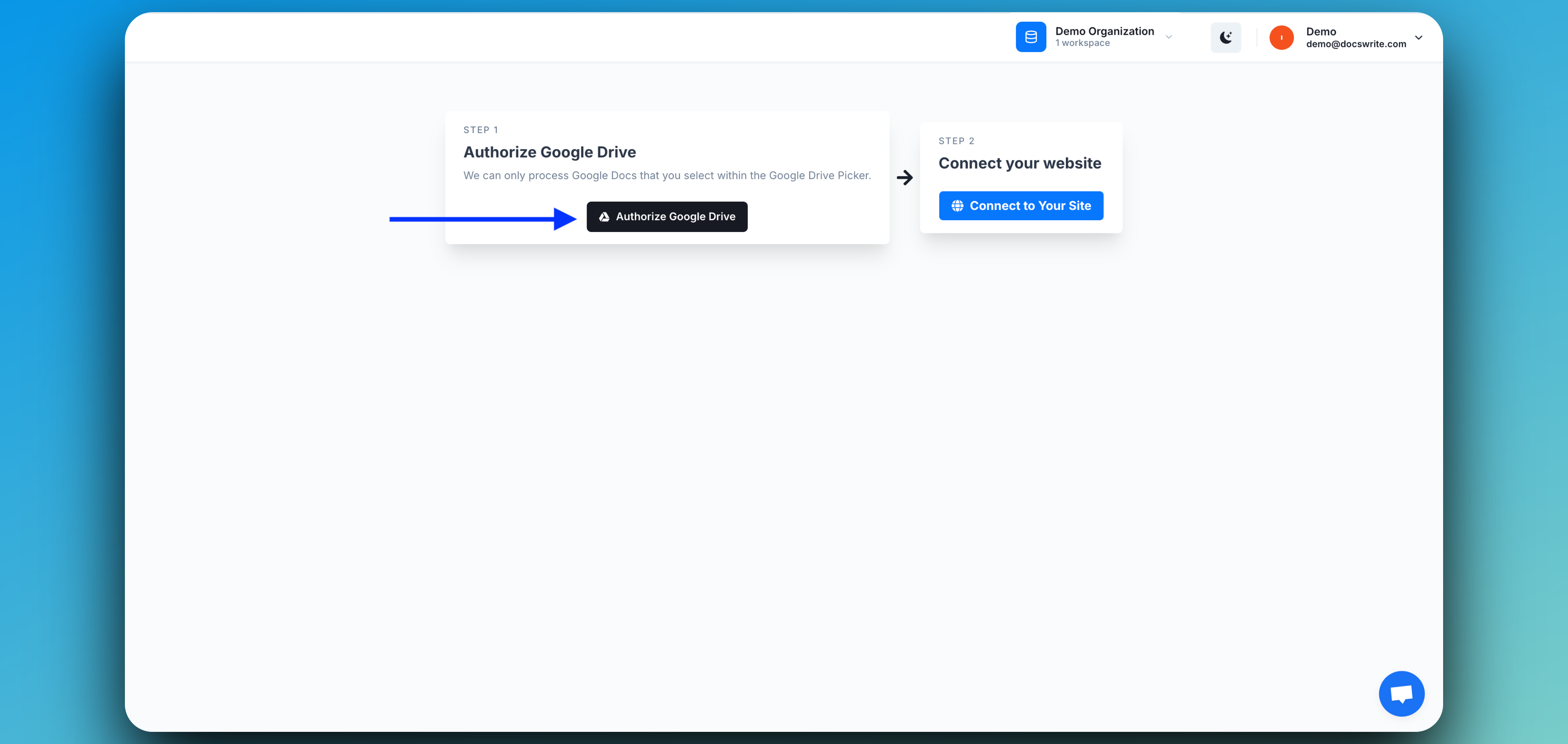
1. In the Docswrite dashboard, click **Connect Google Account**.
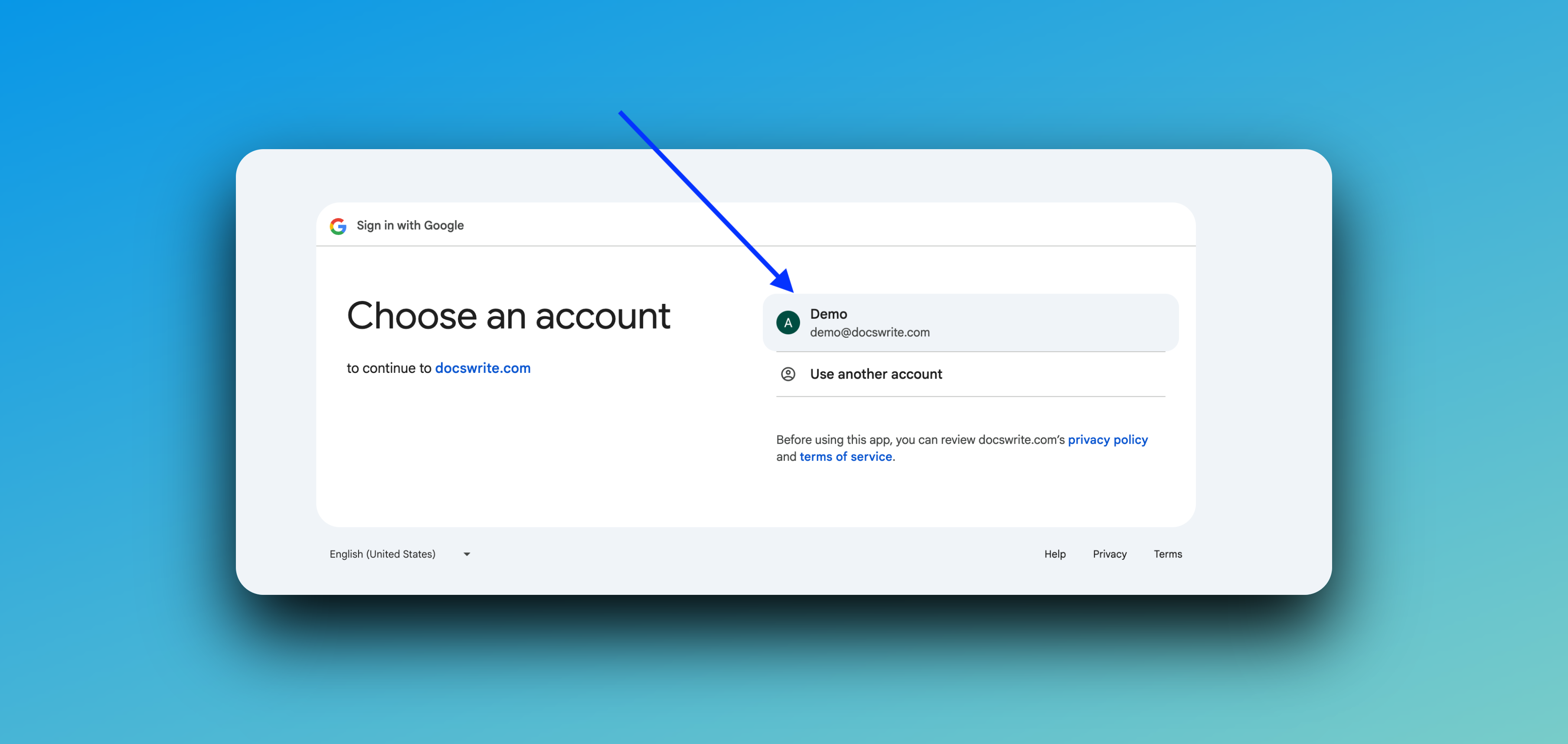
2. Sign in with your Google credentials.
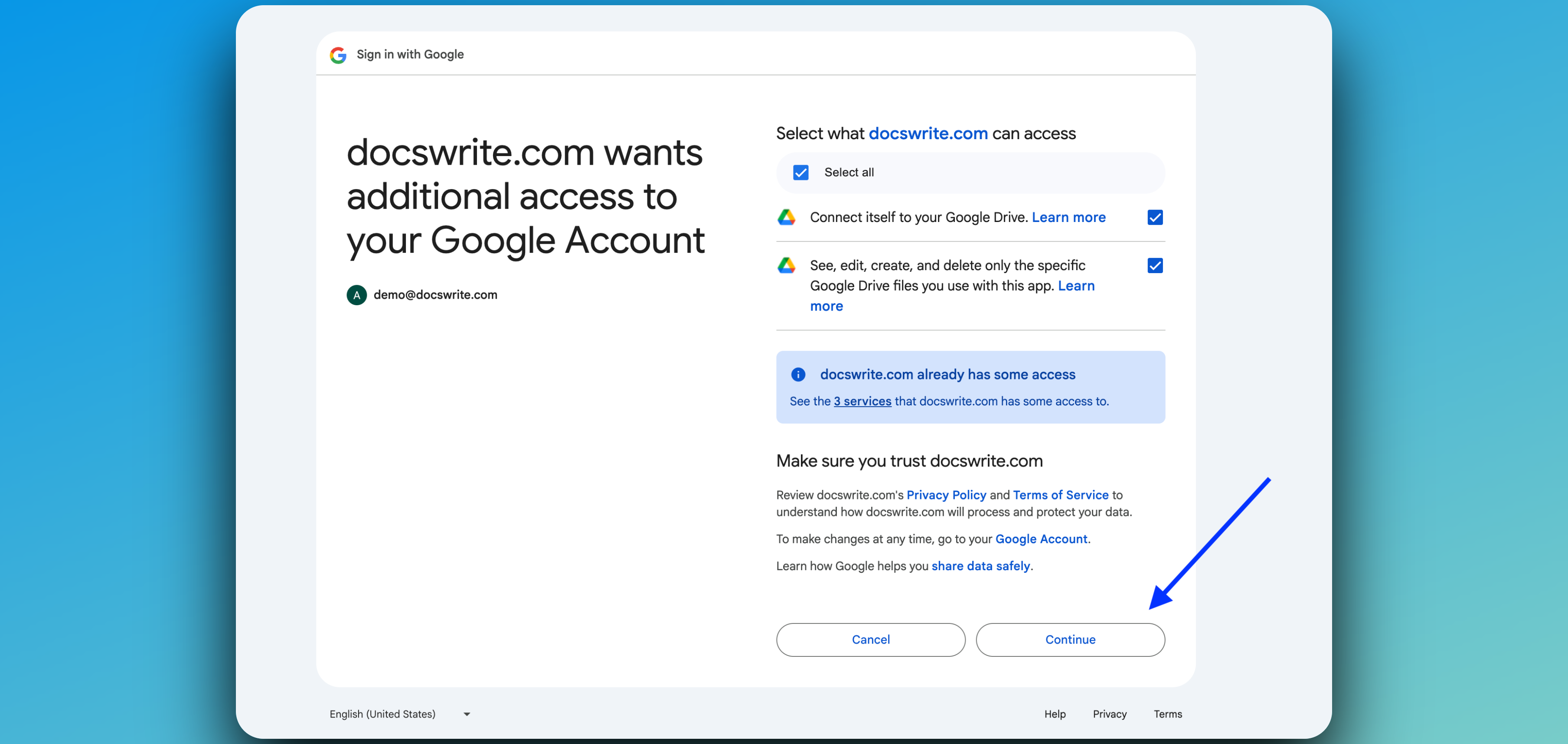
3. Grant Docswrite the requested permissions.
> **Note:** Docswrite only requests the minimal permissions needed to access and export your selected Google Drive documents.
## Step 1: Connect Your Google Account
To get started, connect your Google Account so Docswrite can access your Google Docs.
1. In the Docswrite dashboard, click **Connect Google Account**.
2. Sign in with your Google credentials.
3. Grant Docswrite the requested permissions.
> **Note:** Docswrite only requests the minimal permissions needed to access and export your selected Google Drive documents.
 ## Step 2: Connect Your WordPress Site
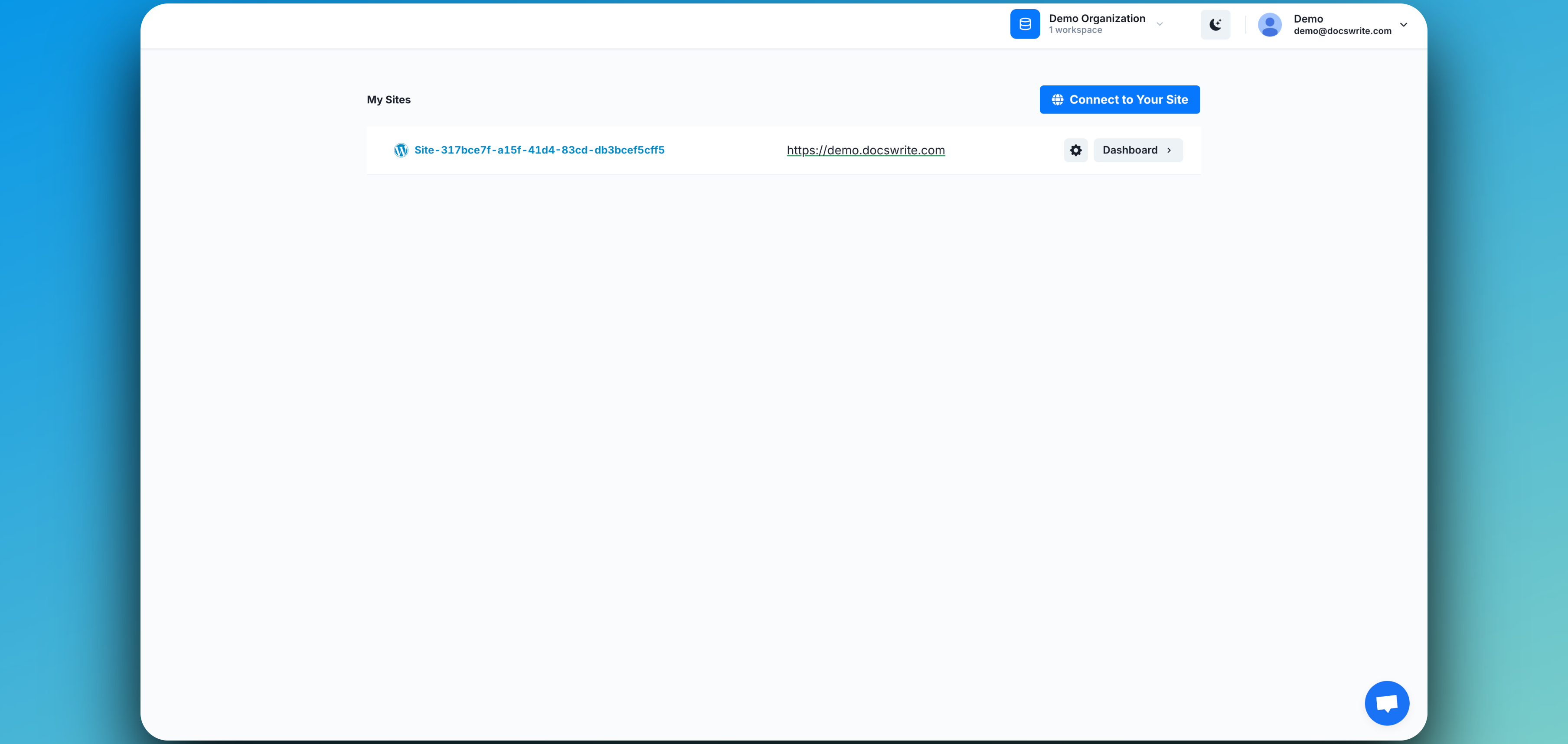
Next, connect your WordPress site to Docswrite. You can do this in one of two ways:
* [Connect via API](/integrations/wordpress/api)
* [Connect via WordPress Plugin](/integrations/wordpress/plugin)
Follow the prompts in the dashboard to complete the connection.
## Step 2: Connect Your WordPress Site
Next, connect your WordPress site to Docswrite. You can do this in one of two ways:
* [Connect via API](/integrations/wordpress/api)
* [Connect via WordPress Plugin](/integrations/wordpress/plugin)
Follow the prompts in the dashboard to complete the connection.
 ## Step 3: Import Posts from WordPress
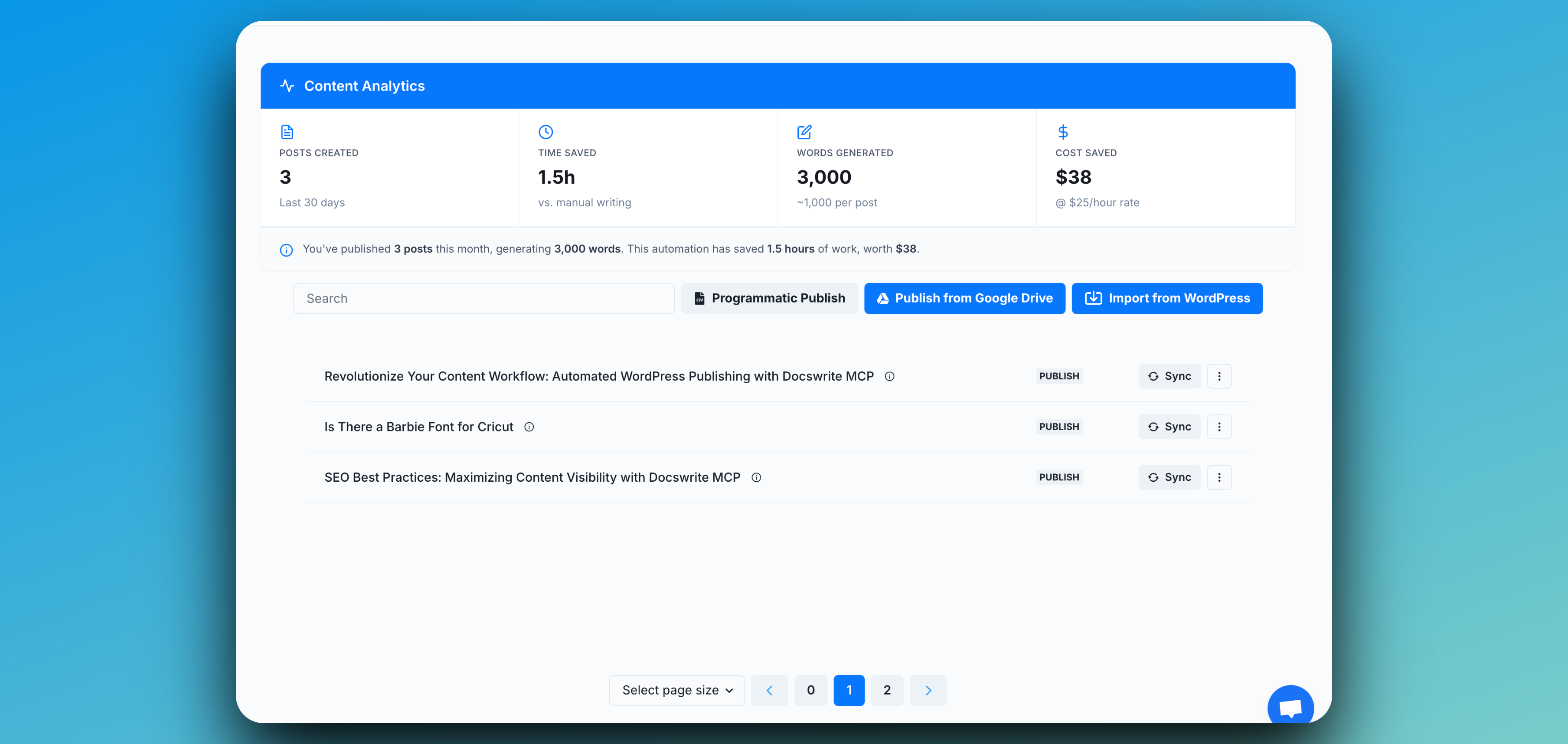
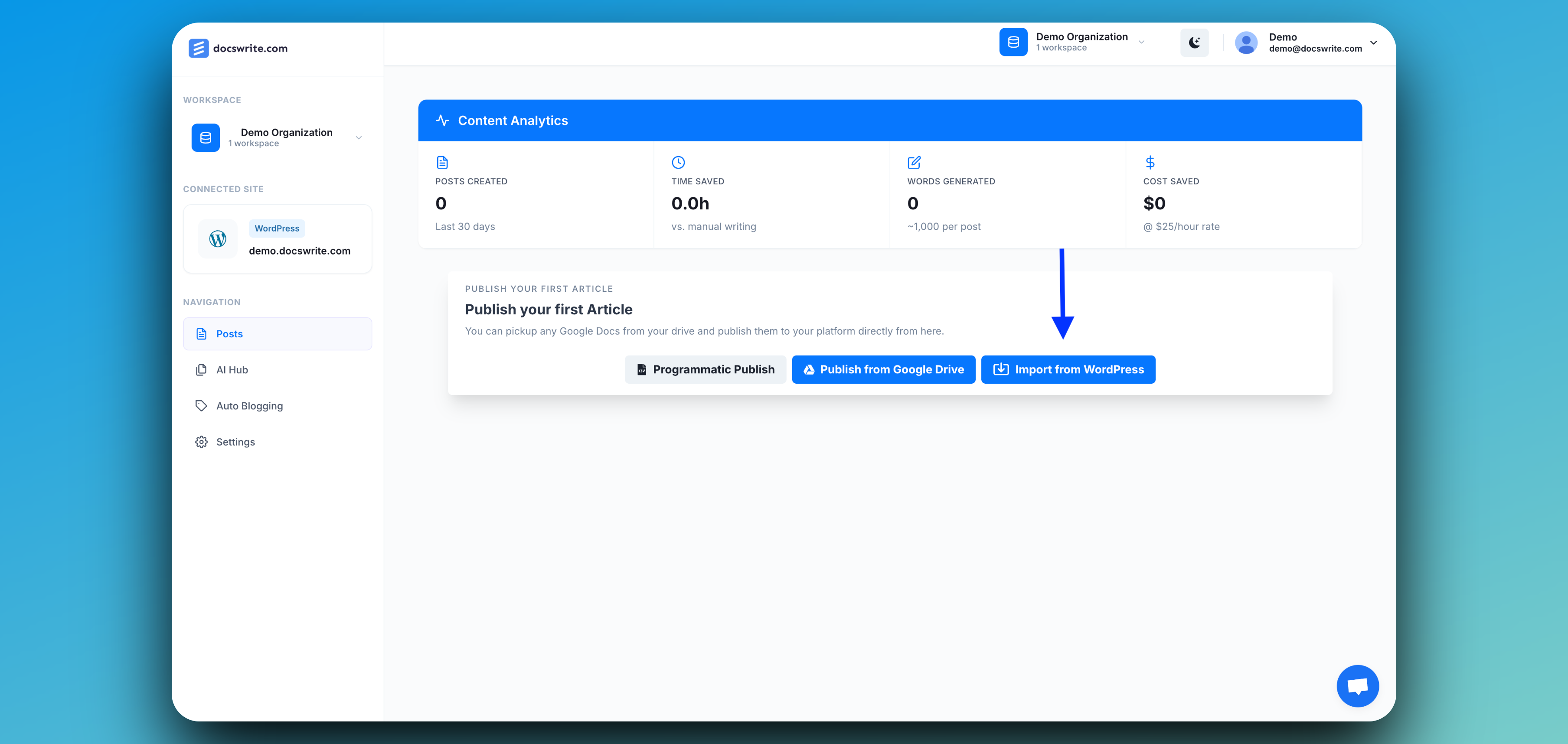
Click **Import From WordPress** in the Docswrite dashboard to begin importing your WordPress posts into Google Docs.
## Step 3: Import Posts from WordPress
Click **Import From WordPress** in the Docswrite dashboard to begin importing your WordPress posts into Google Docs.
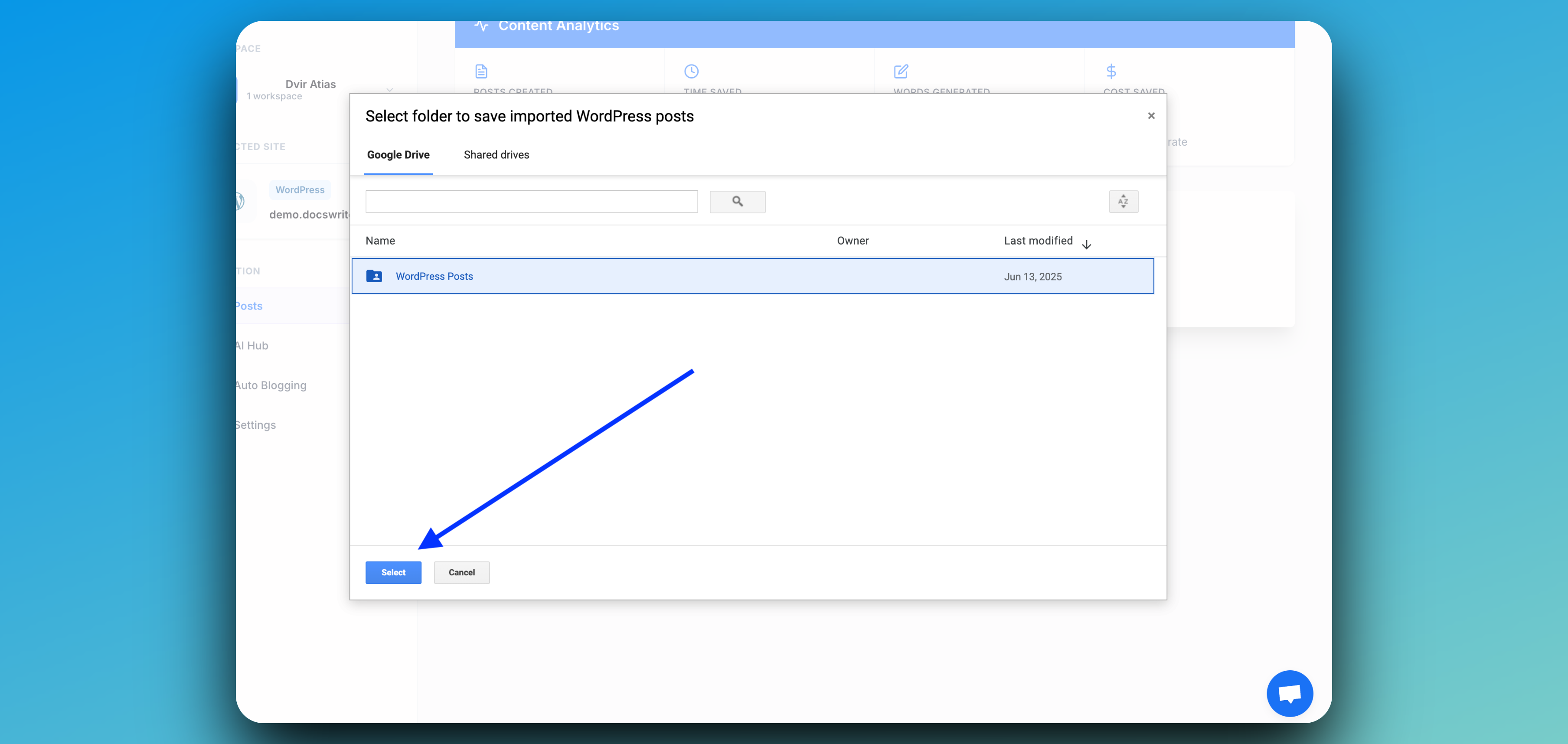
 ## Step 4: Choose Your Destination Google Drive Folder
Select the Google Drive folder where you want your imported posts to be saved.
## Step 4: Choose Your Destination Google Drive Folder
Select the Google Drive folder where you want your imported posts to be saved.
 ## Step 5: Select Posts to Import
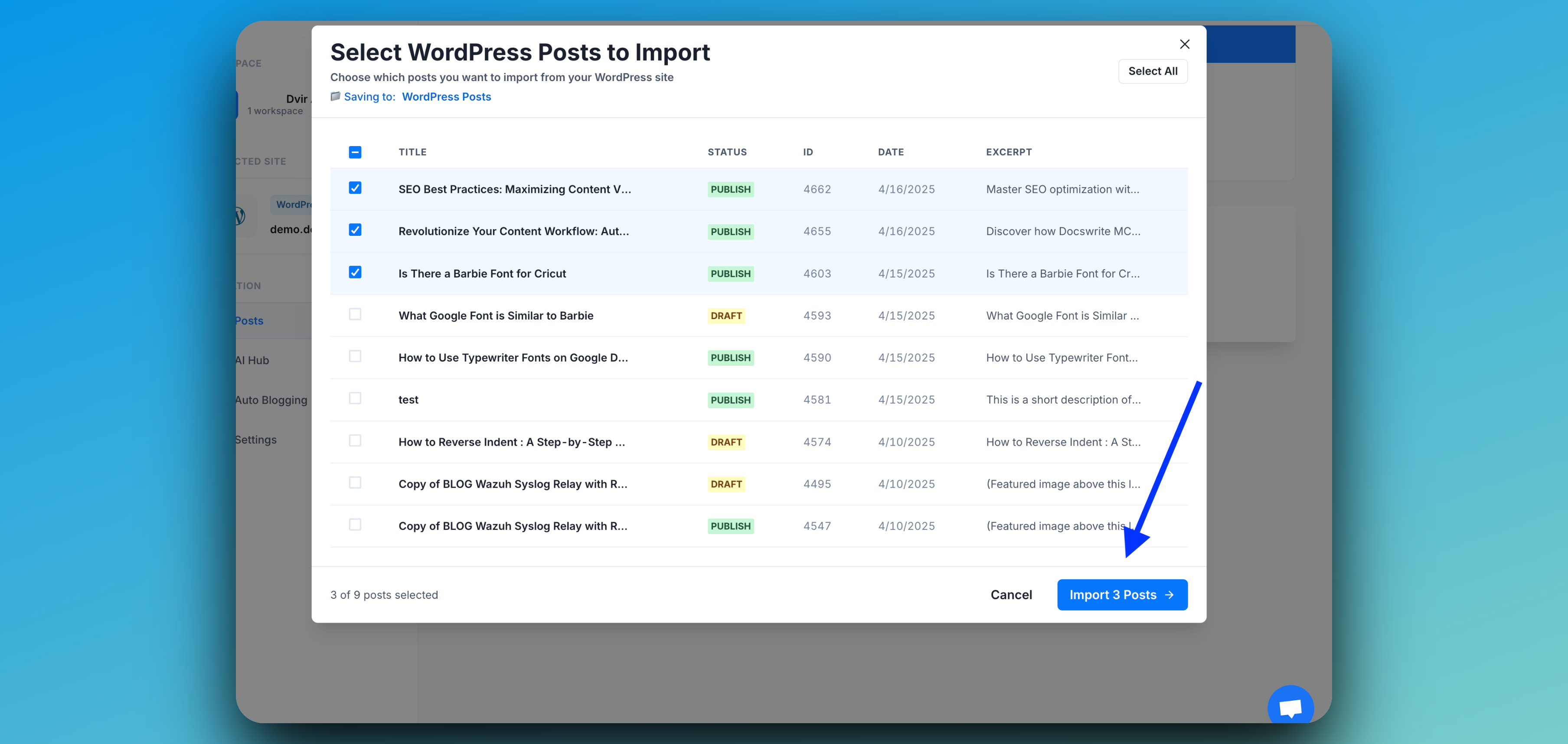
Docswrite will display all your WordPress posts. Choose one, multiple, or all posts you wish to import.\
When you're ready, click **Import Posts** to start the process.
## Step 5: Select Posts to Import
Docswrite will display all your WordPress posts. Choose one, multiple, or all posts you wish to import.\
When you're ready, click **Import Posts** to start the process.
 ## Step 6: 🎉 Your Posts Are Now Successfully Imported!
Your selected WordPress posts have been imported into Docswrite and are now available in your chosen Google Drive folder.
## Step 6: 🎉 Your Posts Are Now Successfully Imported!
Your selected WordPress posts have been imported into Docswrite and are now available in your chosen Google Drive folder.